
AI Behavior Customization (Bot Configuration)
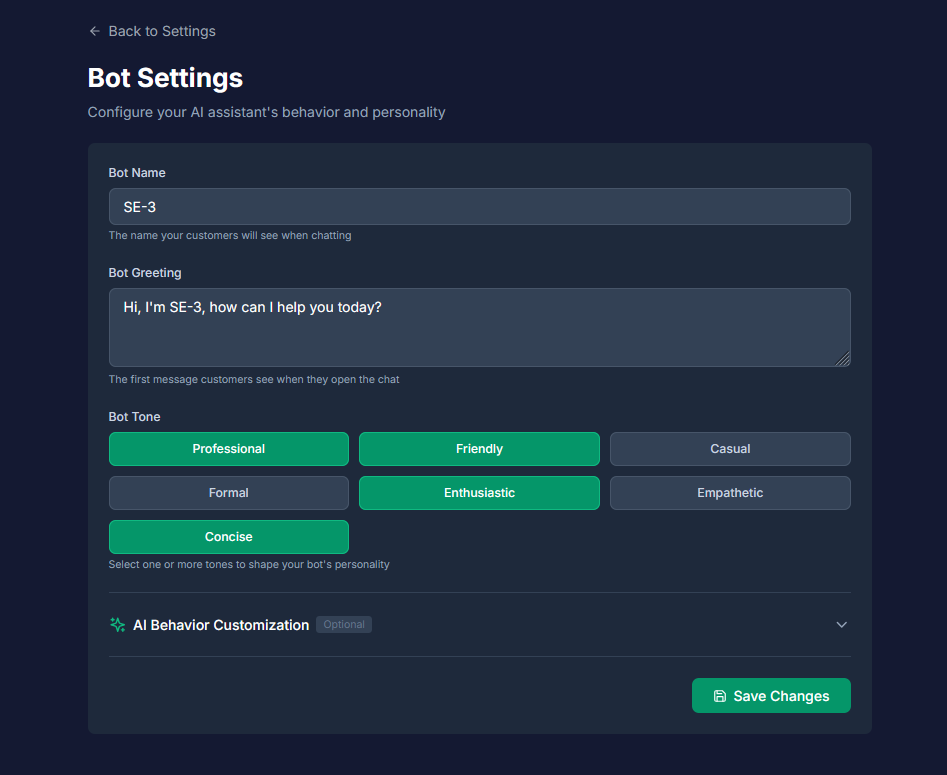
The Bot Configuration page is where you define the personality, voice, and core behavior rules for your AI assistant.
These settings customize its greeting, conversational tone, and response guidelines, ensuring it aligns perfectly with your brand.
1. Plan Requirements and Access
This feature is for advanced customization and requires a paid plan (Basic or Pro).
• Freemium Users: You can view the current settings, but they will be disabled or "grayed out." You must click the "Upgrade Plan" button to access and edit these features.
2. Core Template Protection
BrainBots uses a protected AI template system to maintain consistency and prevent accidental errors.
• What is Protected: The core template automatically manages your business name, hours, safety rules, industry compliance, and knowledge base integration.
• Safety First: The core template cannot be edited by the user, which protects your AI from behaving unexpectedly or unprofessionally. Your customizations are added on top of this base template.
3. Basic Bot Settings
A. Bot Name
This is the name your customers see when they chat with the AI assistant.
• Tips: Choose a friendly or professional name that is short (1–2 words).
• Limit: 1–50 characters.
B. Bot Greeting
This is the first message customers see when they open the chat widget.
• Tips: Keep it warm, introduce the bot by name, and offer assistance. It should be concise (1–2 sentences). Emojis can be used to make the greeting more friendly and engaging.
• Limit: 1–500 characters.
C. Bot Tone
You can select personality traits that shape how your bot communicates. Selecting 1–3 tones that match your brand is recommended.
| Tone | Description | Recommended Usage |
|---|---|---|
| Professional | Formal, business-appropriate language | Tech Support, Financial Services |
| Friendly | Warm, approachable communication | Customer Service, Retail |
| Empathetic | Understanding, supportive tone | Healthcare, Customer Service |
| Concise | Brief, to-the-point answers | Tech Support, quick FAQ resolution |
| Casual | Relaxed, conversational style | |
| Formal | Structured, respectful language | |
| Enthusiastic | Energetic, positive responses |
4. AI Behavior Customization (Advanced System Prompt)
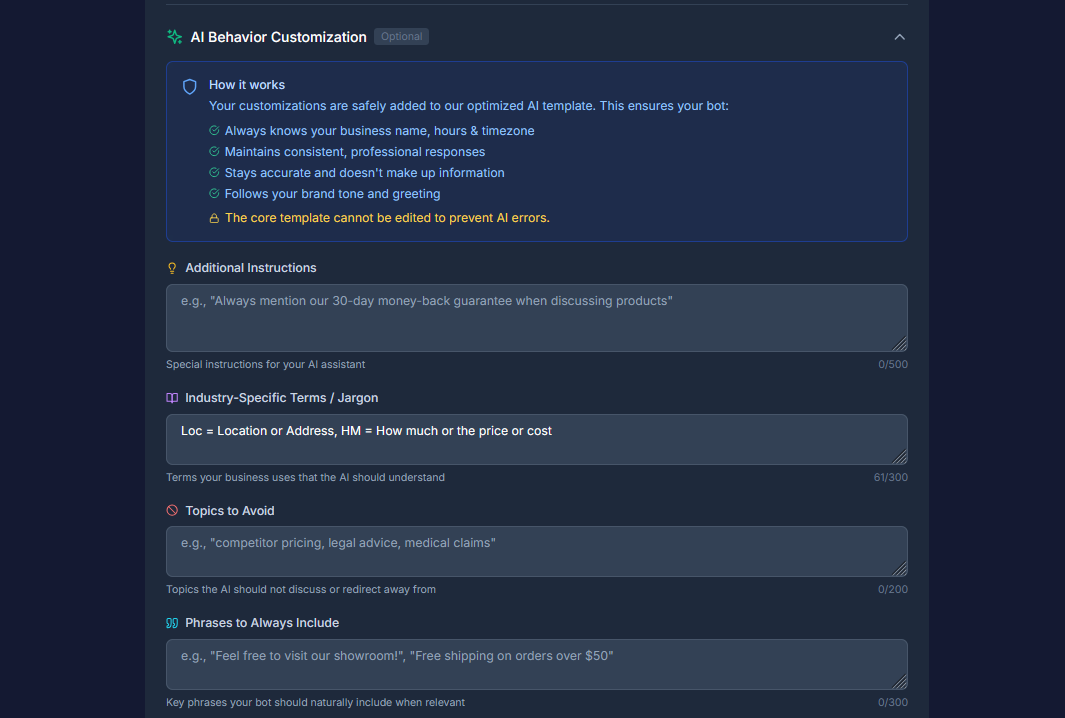
Clicking "AI Behavior Customization" expands the fields that allow you to append detailed instructions to the protected AI template. If you leave the system prompt empty, the bot will use default behavior based on your knowledge base.
A. Additional InstructionsUse this field for special, specific instructions defining how the bot should behave.
• Examples: "Always mention our 30-day money-back guarantee when discussing products" or "Know when to escalate to human support".
• Limit: 500 characters.
• What NOT to include: Business hours (set separately) or basic safety rules (already built-in).
B. Industry-Specific Terms / Jargon
Define acronyms, abbreviations, or specialized vocabulary so the AI understands your business's internal language.
• Examples: "SKU = Stock Keeping Unit" or "PCP = Primary Care Physician".
• Limit: 300 characters.
C. Topics to Avoid
List subjects the AI should not discuss or should redirect away from.
• Examples: "competitor pricing, legal advice, specific salary information".
• Limit: 200 characters.
D. Phrases to Always Include
Input key marketing or customer service phrases that your bot should naturally integrate into relevant responses.
• Examples: "Feel free to visit our showroom!" or "We offer a satisfaction guarantee".
• Limit: 300 characters.
5. Saving and Testing Changes
1. Make all desired changes to the Basic and Advanced fields.
2. Click the "Save Changes" button at the bottom of the form.
3. Changes take effect immediately.
4. Test your settings by opening the chat widget and asking common questions to see how the bot responds.
Best Practice Example: Restaurant & Food Service
| Setting | Example |
|---|---|
| Bot Name | Chef's Helper |
| Bot Greeting | Welcome to [Restaurant Name]! I can help with our menu, reservations, and specials. What can I get for you? |
| Bot Tone | Friendly, Enthusiastic |
| Additional Instructions | Always ask about allergies before recommending dishes. Mention our daily specials when relevant. |
| Topics to Avoid | competitor restaurants, food safety violations |
AI customization is like setting the dials on a complex radio: you set the main frequency (Knowledge Base), but the Bot Configuration settings allow you to fine-tune the volume, tone, and specific content (the System Prompt) so that the broadcast perfectly matches your brand's voice.