
App Integrations
The App Integrations page is where you expand your AI's reach.
Instead of just answering questions on your website, you can connect BrainBots to your social media channels to automate customer support everywhere.
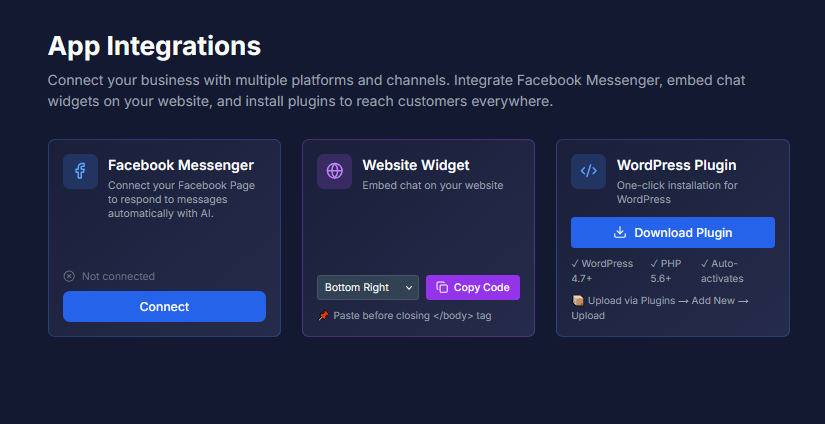
1. Access & Requirements
How to Access: Click "Integrations" in the left sidebar menu (or go to Settings > Integrations).
Plan Requirement: This feature is exclusive to Basic and Pro plans.
• Freemium Users: You will see a "locked" screen. You must upgrade to unlock social media connections and the website widget code.
2. Facebook Messenger
Connect your Facebook Business Page so your AI can reply to messages sent via Messenger 24/7.
How to Connect:
1. Click the "Connect" button on the Facebook card.
2. A Facebook login popup will appear. Log in to the account that manages your page.
3. Select the Page you want to connect (Note: You can only connect one page per BrainBots account).
4. Grant the requested permissions.
5. Once finished, you will see a Green Checkmark and your Page Name on the card.
Requirements:
• You must be an Admin of the Facebook Page.
• It must be a Business Page, not a personal profile.
3. Website Widget (Embed Code)
This is the code you need to make the chat bubble appear on your own website (e.g., Shopify, Wix, Custom HTML).
Customization:
• Position: Choose Bottom Right (Standard) or Bottom Left from the dropdown menu.
• Appearance: The widget automatically uses the logo and colors you set in the Branding page.
How to Install:
1. Select your preferred position.
2. Click the "Copy Code" button.
3. Paste the code into your website's HTML, just before the closing </body> tag.
5. WordPress Plugin
If you use WordPress, you don't need to touch any code. We provide a ready-to-use plugin.
How to Install:
1. Click the "Download Plugin" button to save the ZIP file to your computer.
2. Log in to your WordPress Admin Dashboard.
3. Go to Plugins > Add New > Upload Plugin.
4. Upload the ZIP file you just downloaded.
5. Click "Install Now" and then "Activate."
6. The plugin automatically connects to your specific BrainBots account.
FAQ & Troubleshooting
Q: Can I connect multiple Facebook Pages? A: No. Currently, you can connect one Facebook Page per BrainBots account.
Q: Why isn't my Facebook connection working? A: Common reasons include:1. You are not an Admin of the page.2. You didn't grant all permissions during the popup flow.3. Try clicking "Disconnect" and then connecting again.
Q: Does the widget slow down my website? A: No. The widget loads "asynchronously," meaning it loads in the background so it doesn't affect your website's speed.
Q: Will disconnecting lose my chat history? A: No. If you disconnect Facebook or WhatsApp, your previous conversation history is safe. You can reconnect at any time.
Q: How do I update the WordPress plugin? A: To update, simply deactivate and delete the old plugin from WordPress, download the new ZIP file from your BrainBots dashboard, and install it again.
Best Practices
• Update Branding First: Before installing the widget on your site, go to the Branding page to upload your logo and set your colors. The widget code uses these settings automatically.
• Unified Voice: Ensure your Bot Configuration (Greeting and System Prompt) is generic enough to work for both website visitors and social media users, as the same bot handles all channels.