
Bookings
The Bookings is your central hub for managing all guest reservations throughout their full lifecycle.
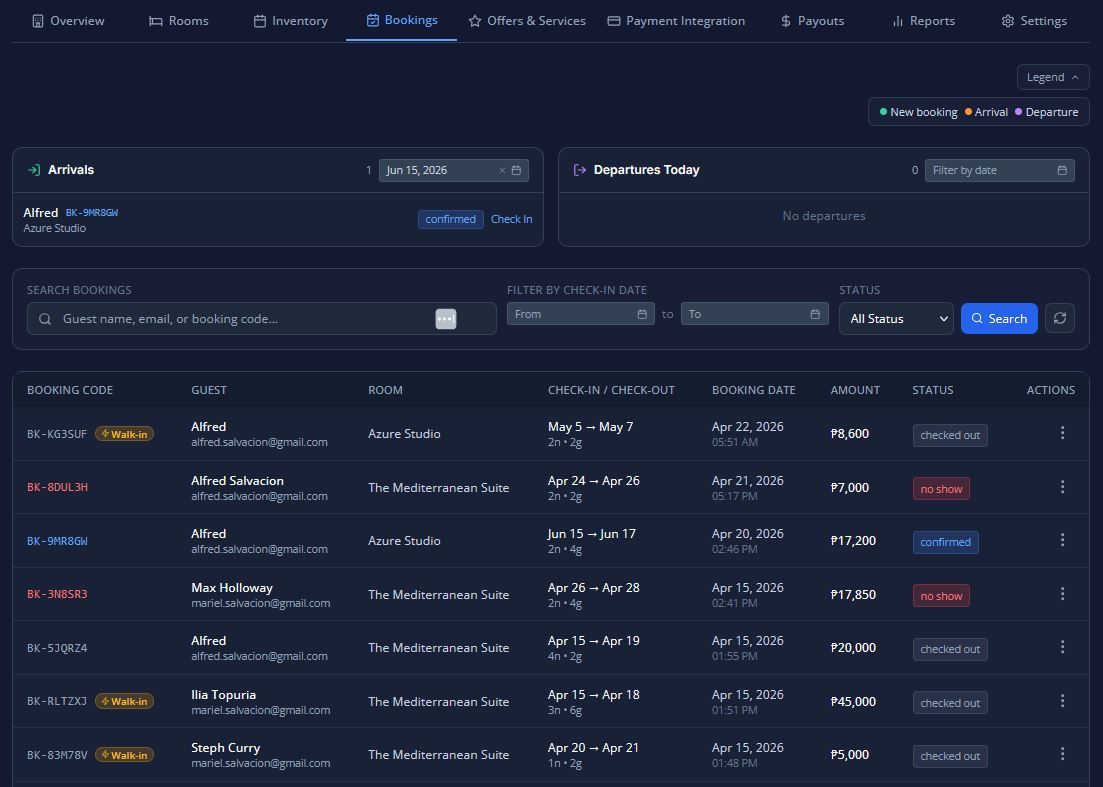
The Bookings tab is your central hub for managing all guest reservations throughout their full lifecycle. Clicking this tab opens a full-screen panel dedicated to daily reservation operations and long-term booking management.
Here is a breakdown of the features and tools available in the Bookings tab:
1. Arrivals, Departures & No-Shows
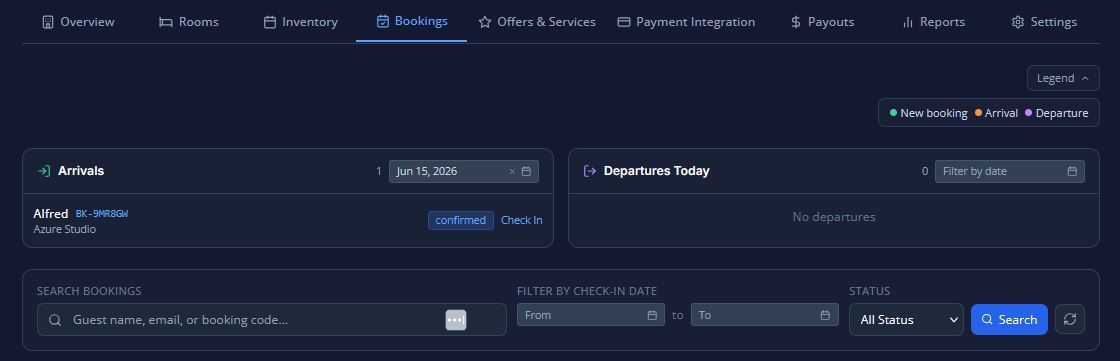
At the top of the panel, you will find dedicated sections to help you manage daily front-desk operations:
- Arrivals & Departures Cards: Two side-by-side cards display the guests expected to check in (green badge) and check out (blue badge). While they default to today's date, you can use the date picker to view arrivals and departures for any specific day. Clicking on any guest in these lists will instantly open their full booking details.
- No-Shows Section: Just below the arrivals and departures, there is a separate list for any bookings that have been marked as a "no-show".
- Real-Time Updates: These lists update automatically in real-time—you do not need to manually refresh the page when a new booking comes in or a guest's status changes.
2. The All Bookings Table
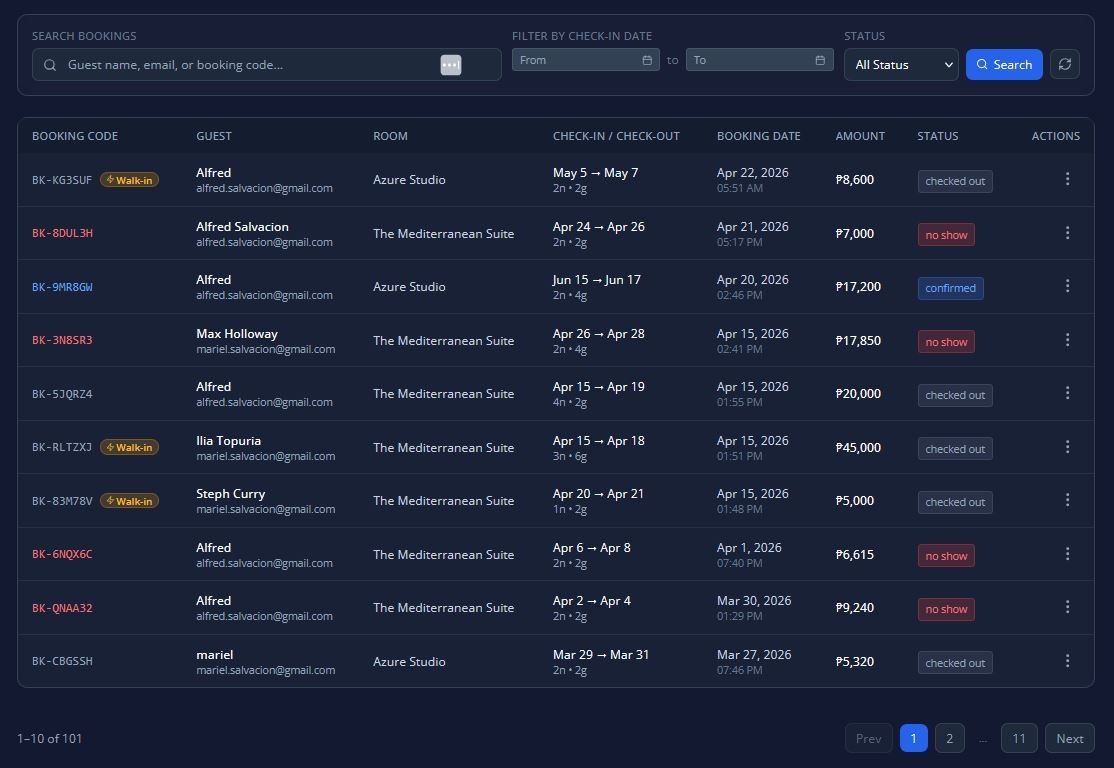
This comprehensive table lists your property's reservations (10 per page) and provides powerful search and filtering tools.
- Search & Filters: You can quickly locate specific bookings by using the free-text search (for guest name, email, or confirmation code), or by filtering by booking status and check-in date ranges.
- Row Information: Each row gives you an at-a-glance summary, including the confirmation code, guest details, room type, stay dates, total amount, and the "source channel" (e.g., whether they booked via the website, chat, or as a walk-in).
- Live Expiry Countdown: For bookings that are currently Tentative or Pending, you will see a live countdown timer ticking down the remaining time before the reservation expires.
3. Booking Statuses & Color Codes
To help you quickly identify the state of a reservation, statuses are color-coded with badges:
- Amber:Tentative (awaiting manual confirmation) or Pending (awaiting online payment).
- Blue:Confirmed (paid online or manually confirmed by staff).Emerald (Green):Checked-in guests.
- Slate (Grey):Checked-out guests or Expired reservations.
- Red:Cancelled bookings or No-shows.
4. Booking Actions & Details
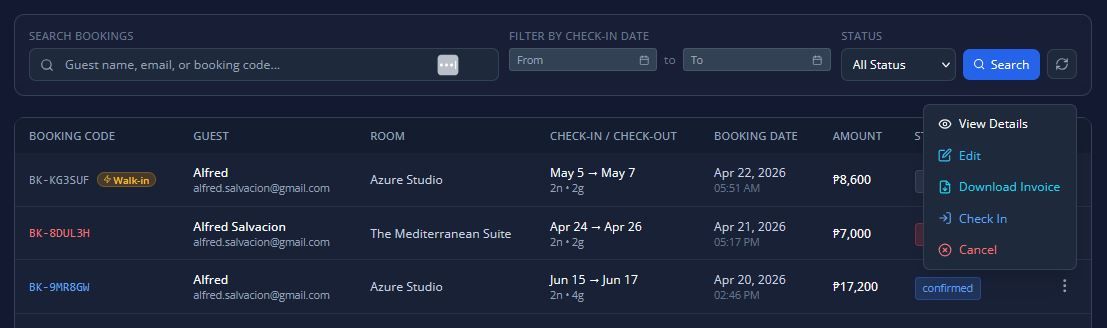
Every row features an Action Menu (⋮) on the far right, allowing you to perform lifecycle actions based on the booking's current status. Actions include:
- Confirm, Check In, & Check Out: Move guests through the standard stay lifecycle. If there is an outstanding balance, the system will prompt you to collect it before allowing a check-in.
- Extend Stay: Allows you to change a checked-in guest's check-out date, check room availability for the extension, and set custom pricing if needed.
- Cancel & Mark No-Show: Destructive actions that will ask for your confirmation before proceeding. You can also "Revert No-Show" if a guest arrives late.
- Download Invoice: Generate a PDF invoice for any confirmed or completed booking.
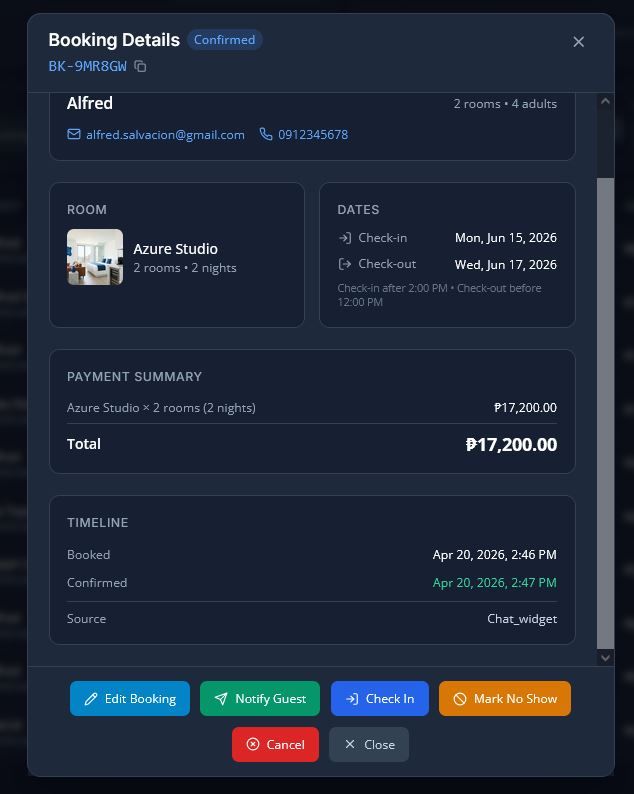
You can also click View Details (or click the confirmation code directly) to open the Booking Details Modal. This comprehensive view shows everything from special guest requests and exact pricing breakdowns (including taxes and fees) to payment history, booking timeline timestamps, and any linked extension bookings.