
Facebook Messenger Integration
The Facebook Messenger Integration allows you to connect your Facebook Business Page with BrainBots.
This enables your AI assistant and live agents to manage and respond to customer conversations directly through Messenger, providing 24/7 support on the platform where your customers are already active.
1. Plan Requirements and Prerequisites
A. Plan RequirementThis is a premium feature and requires a paid plan (Basic or Pro).
• Freemium users will see a gate explaining the benefits of the feature and an "Upgrade" button.
B. Prerequisites
Before connecting, ensure you have:
• A Facebook Business Page (not a personal profile).
• Admin access to that Facebook Page.
• A BrainBots business account with an active subscription.
2. Setting Up the Integration
The connection process is performed within the BrainBots Business Dashboard.
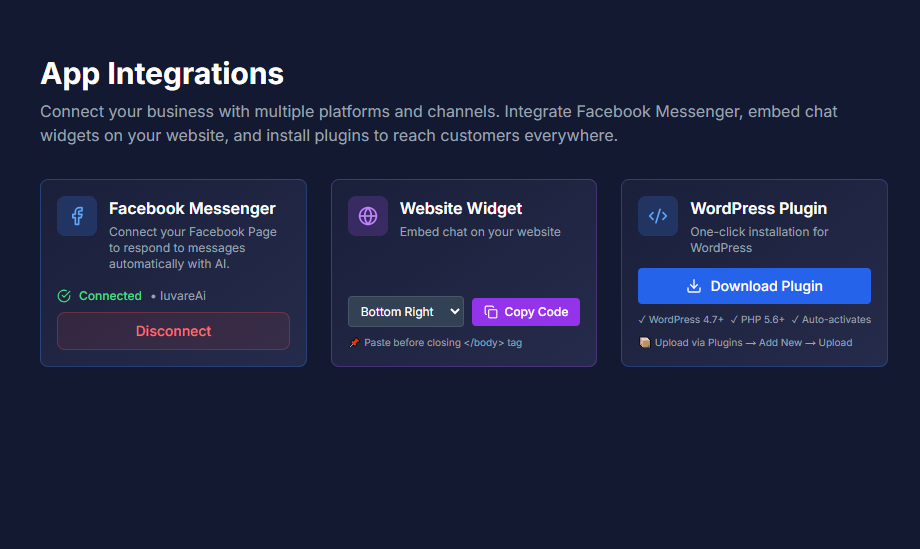
1. Navigate to Integrations: Log in to your Business Dashboard and go to the Integrations page.
2. Find Facebook Messenger: Locate the Facebook Messenger card in the list of available integrations.
3. Connect: Click the "Connect" button (or "Connect Facebook").
4. Facebook Login: A Facebook login popup will open. Log in if prompted.
5. Select Page and Grant Permissions: Select the specific Facebook Page you wish to connect and grant the required permissions.
6. Verify Connection: The status indicator should change to "Connected" (green checkmark), and your Page name will be displayed.
3. How Messenger Conversations Work
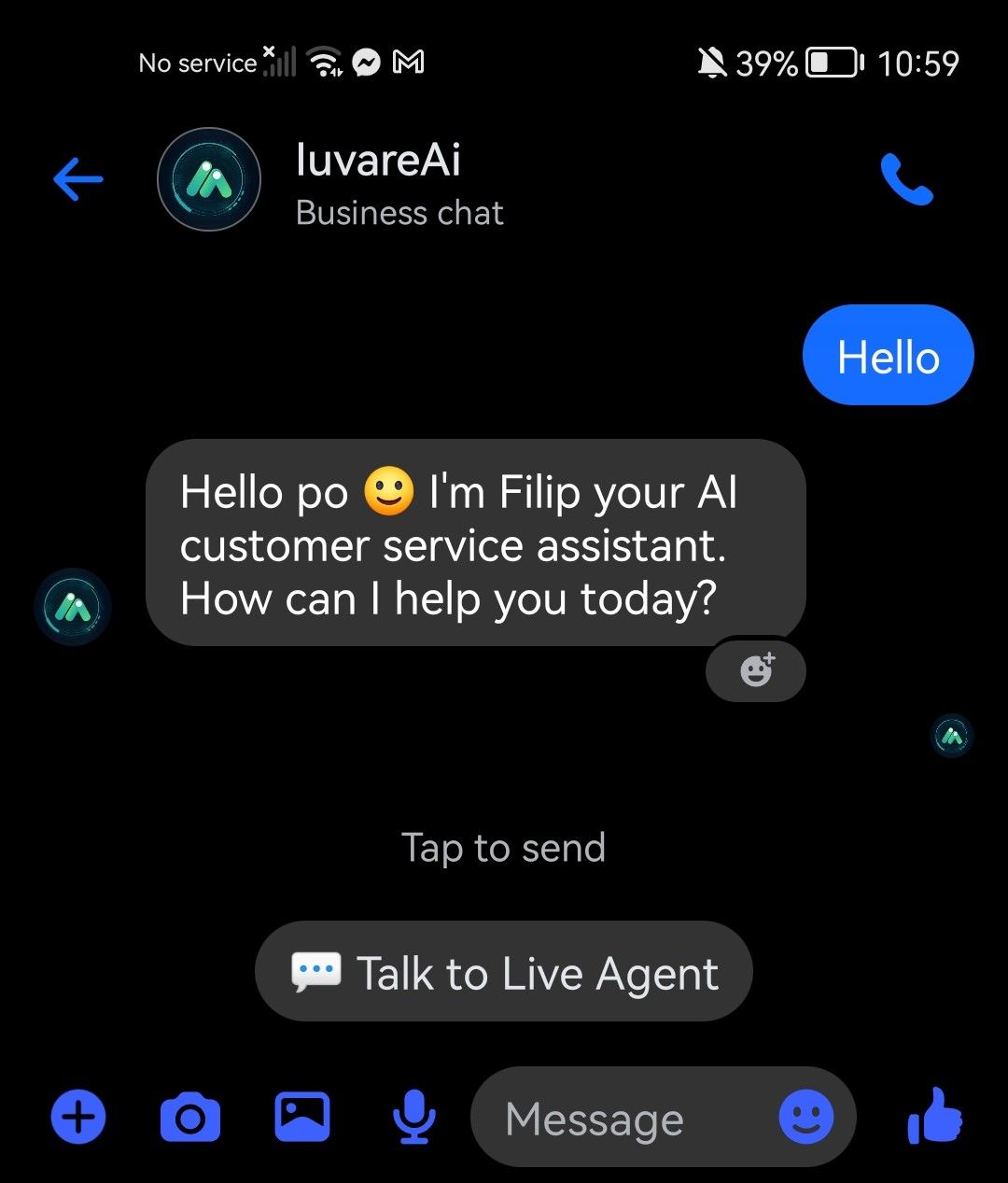
The integration ensures a seamless transition between automated and human support.
| Conversation State | Handler | Description |
|---|---|---|
| Bot Mode | AI Bot | The AI chatbot uses your Knowledge Base to automatically respond to customer inquiries 24/7. |
| Handoff Pending | Queue | Customer has requested to speak with a human agent and is waiting for acceptance. |
| Agent Active | Agent | A live agent is handling the conversation via the Agent Dashboard. |
Requesting a Live Agent
Customers can request a human agent by clicking "💬 Talk to Live Agent" and typing phrases such as "Talk to a human," "Speak to an agent," or "Live agent please". The customer will then receive a confirmation prompt with quick reply buttons (e.g., "✅ Yes, connect me") before being placed in the queue.
4. Agent Experience (Handling Messenger Chats)
Agents manage Messenger conversations directly within the Agent Dashboard PWA.
Identifying and Accepting Chats
• Identification: Messenger chats are identified by a "Facebook Messenger" source indicator and, if privacy settings allow, the customer's Facebook profile picture and display name. If restricted, the customer may appear as "Facebook User".
• Acceptance: New Messenger handoff requests appear in the Pending tab of the Agent Dashboard. Clicking the session automatically accepts it, and your personalized welcome message is sent to the customer via Messenger.
• Messaging: Type and press Enter in the input field to send messages directly to the customer's Messenger app.
Closing Sessions and Feedback
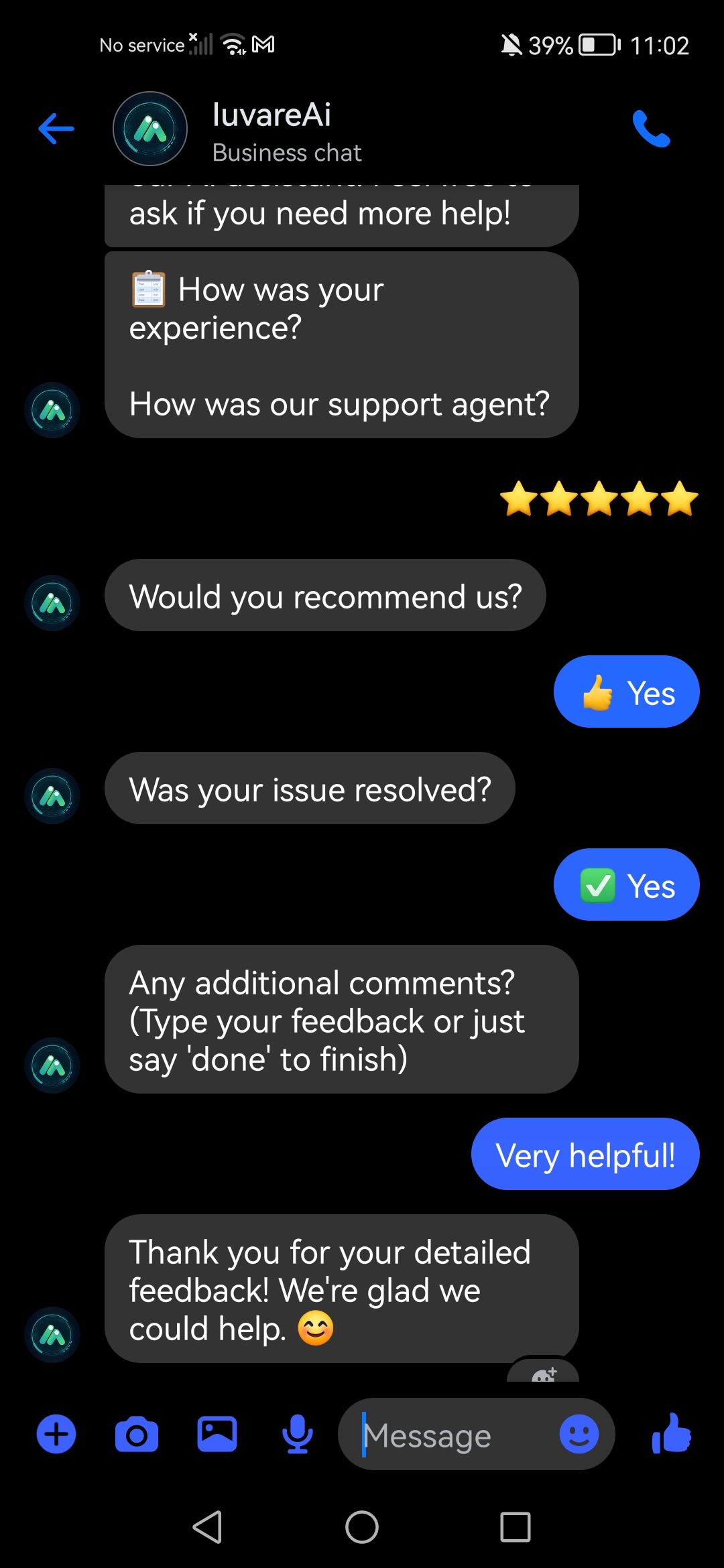
When the conversation is complete, the agent clicks Close Session.
1. Your personalized closing message is sent to the customer via Messenger.
2. A multi-step satisfaction survey (rating request) is immediately sent to the customer via quick replies.
3. The AI bot resumes handling future messages from that customer.
Messenger Limitations
Agents must be aware of the following platform restrictions:
• 24-Hour Response Window: Facebook requires businesses to respond to a customer within 24 hours of their last message. After this window expires, you cannot send further messages until the customer sends a new message to reopen the window.
• Message Types: Messages are currently text-only (file attachments are not supported).
• Profile Access: Profile picture and name may be restricted by the customer's privacy settings.
5. Tracking and Reporting
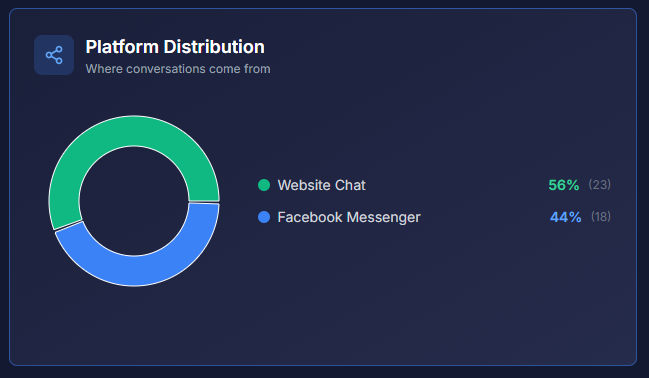
All Messenger activity is logged and tracked in the Business Dashboard.
• Lead Dashboard: All Messenger conversations appear in the Leads dashboard. You can view the full conversation history, customer profile information (if available), and session metadata.
• Analytics: The Analytics page uses the Platform Distribution Chart to show the volume and percentage of conversations originating from Facebook Messenger.
• Ratings: Customer satisfaction ratings collected via the multi-step flow are stored and viewable on the Leads Dashboard and aggregated in the Analytics dashboard.
6. Troubleshooting Common Issues
| Issue | Possible Causes | Solutions |
|---|---|---|
| Agent messages not delivered | 24-hour messaging window expired. | The customer must send a new message to reopen the response window. |
| Messages not received in BrainBots | Facebook Page not connected or webhook issue. | Check the integration status in Settings → Integrations and reconnect the Facebook Page if necessary. |
| Profile not displaying | Customer's Facebook privacy settings. | This is a Facebook platform limitation and expected behavior. |
| Handoff doesn't trigger | No agents online or all agents at capacity. | Ensure agents are Online and adjust agent capacity settings. |