
Knowledge Base
The Knowledge Base is the "brain" of your AI assistant.
This is where you upload documents and website links to train your bot. The AI reads this information to provide accurate, business-specific answers to your customers.
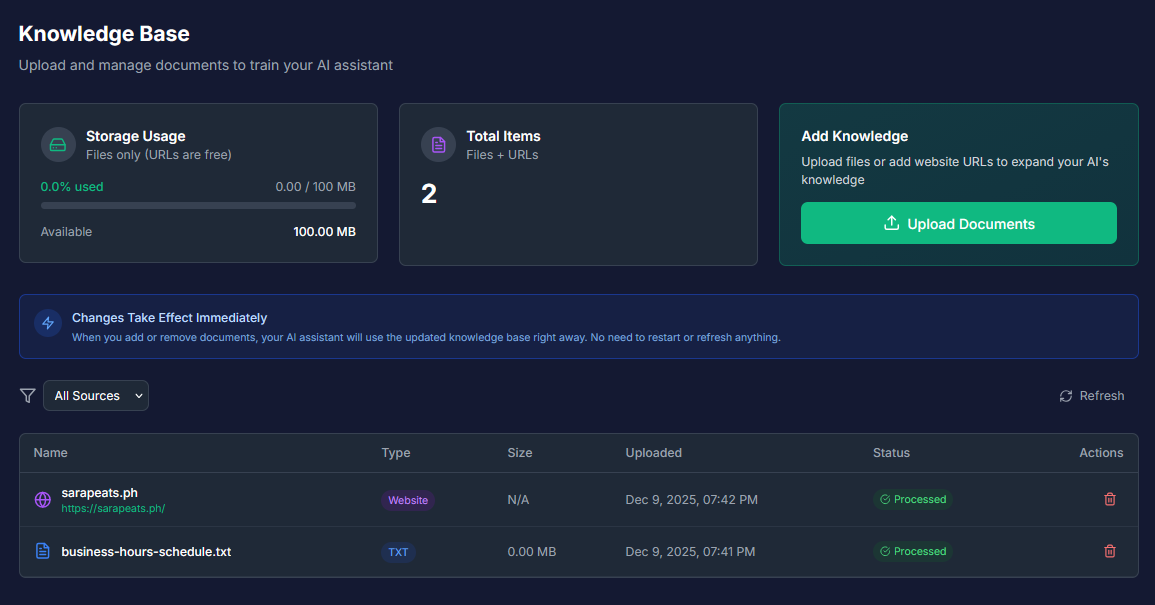
You can train your AI using two types of sources:
📂 Files
Upload documents directly from your computer.
• Supported Formats: PDF, DOCX (Word), TXT, MD, CSV, XLSX/XLS (Excel).
• Size Limit: Maximum 10 MB per file.
• Security: All files are scanned for viruses before processing.
Note for Excel Users: The AI only reads the first sheet of a spreadsheet. If you have data on multiple tabs, please save them as separate files before uploading.
🌐 Website URLs
Train the AI using content directly from your website.
• Limit: Maximum 5 URLs total.
• Benefit: URLs do not count toward your storage quota.
• Processing Time: 10–30 seconds per page.
2. How to Upload Documents
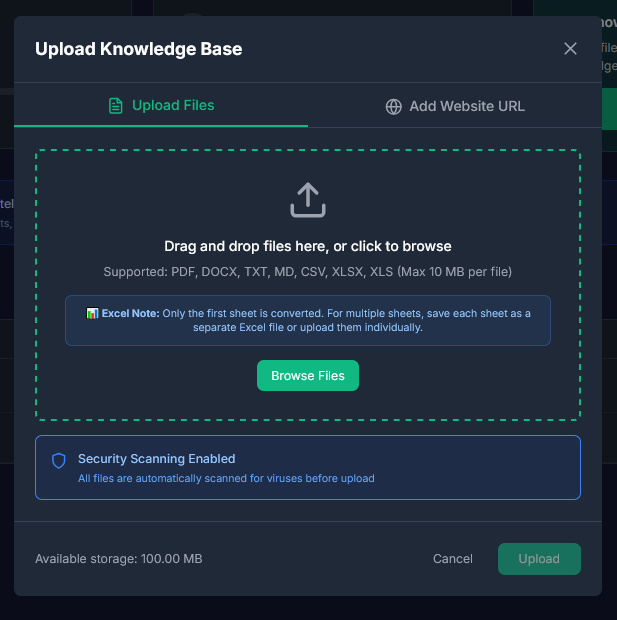
1. Click the "Upload Documents" button on the top right of the page.
2. The Upload Modal will open on the "Files" tab.
3. Drag and drop your files into the gray box, or click "Browse Files" to select them from your computer.
4. Review the list of selected files (invalid files will be marked in red).
5. Click the "Upload" button at the bottom.
3. How to Add Website Links
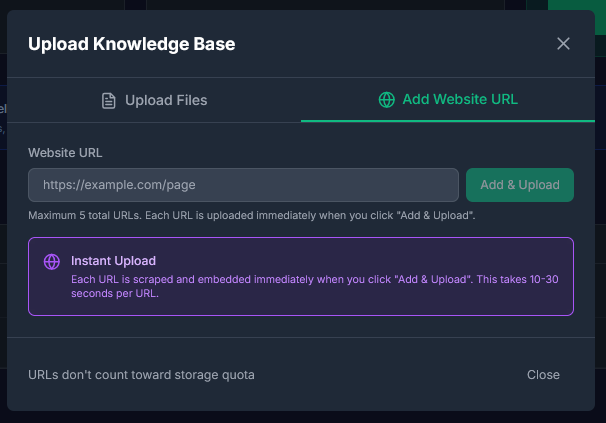
1. Click the "Upload Documents" button.
2. Switch to the "URLs" tab inside the modal.
3. Paste the full website link (e.g., https://myshop.com/pricing).
4. Click "Add & Upload."
5. The system will scrape the text from that page and add it to your Knowledge Base.
4. Understanding Status Indicators

Once you upload a file, you will see a status icon next to it in the Document List:
| Icon | Status | Meaning |
|---|---|---|
| Blue Spinner | Processing | The system is reading and indexing the content. (Takes 5–60 seconds). |
| Green Check | Processed | Success! The AI can now use this document to answer questions. |
| Red X | Error | The upload failed. Delete the file and try again. |
Auto-Refresh: You do not need to refresh your browser. The page automatically checks for updates every 5 seconds until processing is complete.
5. Managing Storage
Your storage quota depends on your subscription plan. You can monitor your usage via the "Storage Quota" card at the top of the page.
• Freemium: 50 MB
• Basic: 100 MB
• Pro: 500 MB
Tips to save space:
• Compress large PDFs before uploading.
• Use URLs for web-based content (they use 0 MB of your quota).
• Delete outdated documents.
6. Deleting Documents
If a document is outdated (e.g., an old price list), you must delete it so the AI doesn't give wrong information.
1. Find the document in the list.
2. Click the Trash Can icon on the right side.
3. Confirm the deletion in the popup.
Warning: Deletion is permanent. Once deleted, the AI immediately stops using that information.
FAQ & Troubleshooting
Q: Why did my upload fail?A: The most common reasons are:
1. The file is larger than 10 MB.
2. The file is password-protected (remove the password and try again).
3. You have reached your storage limit (check the Storage Card).
Q: Can I edit a document inside the dashboard?A: No. You cannot edit files inside BrainBots. You must edit the file on your computer, delete the old version from the dashboard, and upload the new version.
Q: What content is best for training?A: The AI works best with clear, factual information. We recommend uploading:
• Frequently Asked Questions (FAQs)
• Product Catalogs & Menus
• Return & Shipping Policies
• Company History & Contact Info
Q: My PDF has images, will the AI see them?A: BrainBots extracts text from your documents. It does not "see" images or charts. Ensure important details are written out in text format.