
Lead Management (CRM)
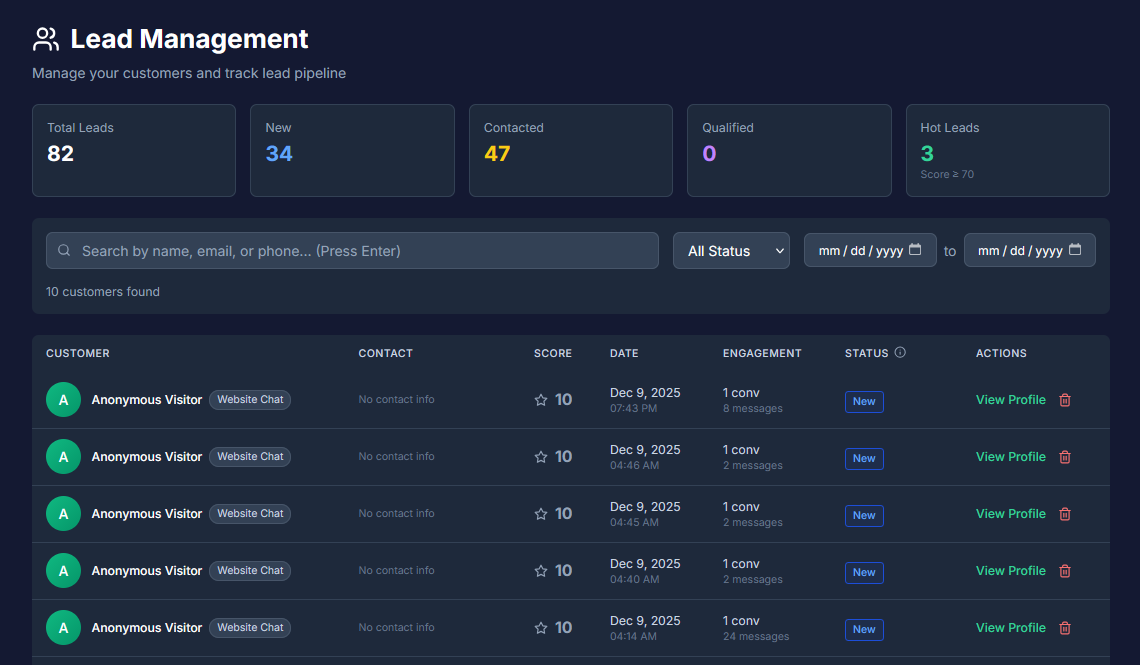
The Leads page serves as your built-in Customer Relationship Management (CRM) hub.
It allows you to track every person who interacts with your AI, view their conversation history, and manage them through a sales pipeline from "New" to "Converted."
How to Access: Click "Leads" in the left sidebar menu.
Plan Requirement: This feature is exclusive to Basic and Pro plans.
• Freemium Users: You will see a "feature gate" screen. You must upgrade to access customer profiles, chat history, and lead scoring.
2. The Sales Pipeline (Status)
BrainBots organizes your customers into distinct stages so you know exactly where they are in the buying journey. You can filter the main list by these statuses.
| Status | Color | Definition |
|---|---|---|
| New | 🔵 Blue | A fresh lead who has started chatting but hasn't been contacted by your team yet. |
| Contacted | 🟡 Yellow | You or an agent has reached out to this customer. |
| Qualified | 🟣 Purple | The customer has confirmed interest in your product or service. |
| Converted | 🟢 Green | Success! The lead has become a paying customer. |
| Lost | 🔴 Red | The lead did not convert (closed/archived). |
How to Change a Status:
1. Click the status badge on the customer row (or inside their profile).
2. Select the new status from the dropdown.
3. The update is saved immediately.
3. Lead Scoring (Prioritization)
The AI automatically assigns a Lead Score (0–100) to every customer based on their engagement. This helps you decide who to call first.
🟢 Hot Lead (70–100): High priority. This user asked many questions, spent a long time chatting, or provided contact info. Action: Follow up immediately.
🟡 Warm Lead (40–69): Moderate interest. Action: Nurture with follow-up information.
⚪ Cold Lead (0–39): Low engagement or just browsing.
4. Managing Customers
The main screen displays a list of all visitors who have chatted with your bot.
Search & Filter:
• Search Bar: Find customers by Name, Email, or Phone number.
• Date Filter: View leads from a specific time range (e.g., "Last 7 Days").
• Status Filter: View only "New" leads to see who needs immediate attention.
5. Customer Detail Profile
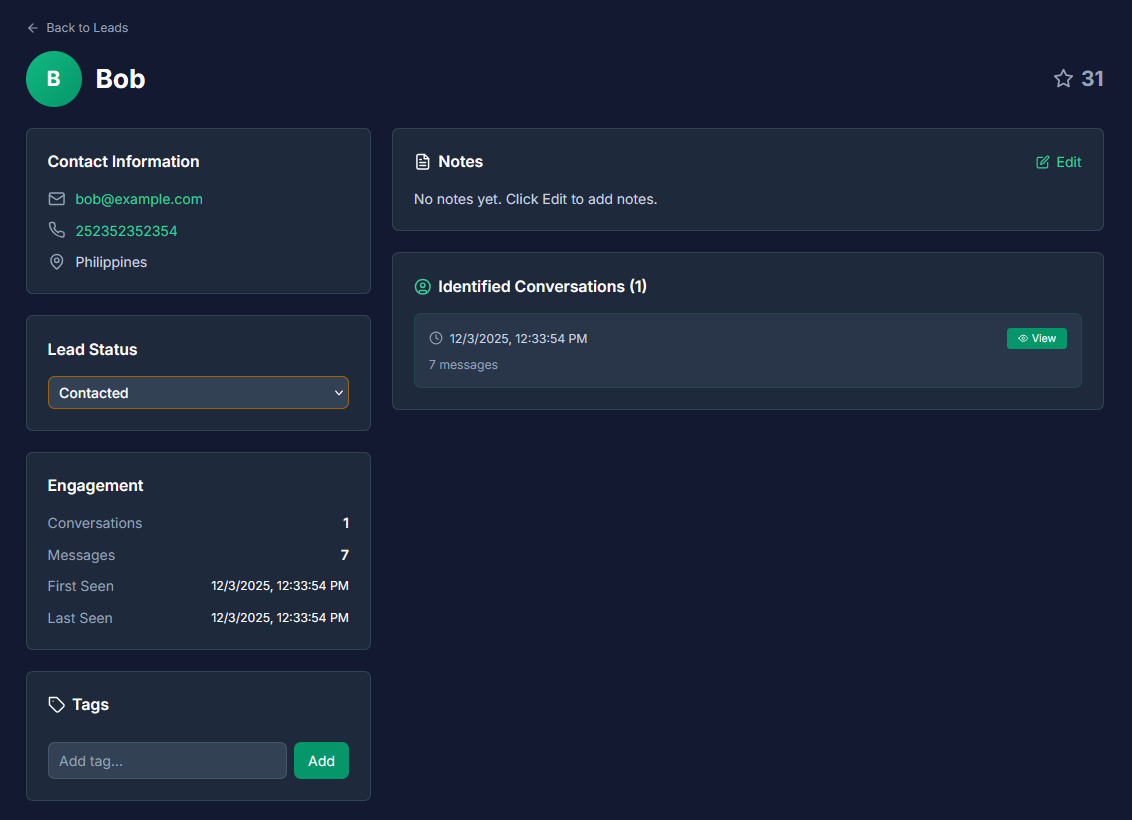
Clicking on a lead opens their detailed profile, which is divided into three sections:
A. Profile Information
See the customer's avatar, name, email, phone number, and location (if available). You can also see a breakdown of why their Lead Score is high or low.
B. Conversation History
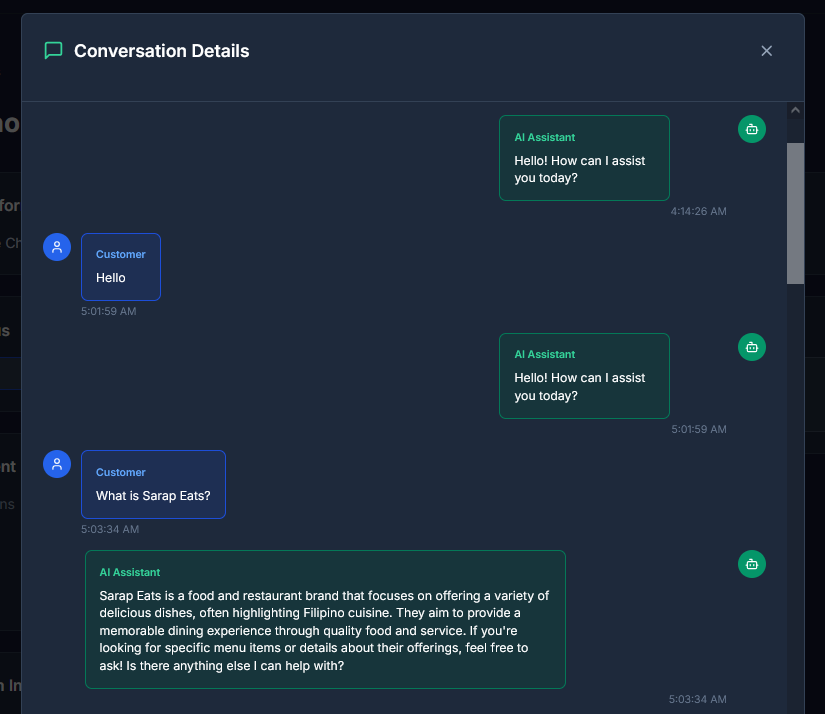
Read the full transcript of the customer's interaction with your business.
• See exactly what the AI answered.
• See where a human agent took over.
• Timestamps show exactly when messages were sent.
C. Notes & Tags
This is for your internal team use.
• Add Note: "Customer prefers 2 PM delivery" or "Interested in the premium package."
• Tags: Label customers for easy sorting (e.g., #VIP, #Urgent, #Wholesale).
FAQ & Troubleshooting
Q: What is the difference between "Leads" and "Customers"? A: In the BrainBots dashboard, they are used interchangeably. Anyone who chats with your bot is tracked as a Lead/Customer.
Q: Why do some customers have no name? A: Visitors are anonymous until they provide their name or contact details in the chat. The system tracks them via a "Session ID" until they identify themselves.
Best Practices for Business Owners
1. The "Morning Review" Routine
Check your Leads page every morning. Filter by "New" and look for Green Scores (70+). These are your hottest prospects from the last 24 hours—contact them first.
2. Keep the Pipeline MovingDon't let leads stay "New" forever. Once you reply to an inquiry, change their status to "Contacted." This keeps your dashboard organized and ensures no customer is ignored.
3. Use Notes for ContextIf you call a customer, add a quick Note in their profile (e.g., "Called on Tuesday, no answer"). This ensures that if another team member looks at the profile, they know the history.