
Ratings and Reviews
The Ratings and Reviews system in BrainBots is designed to automatically collect customer satisfaction scores and feedback after a live agent support interaction concludes.
This data is critical for measuring customer satisfaction, tracking agent performance, and identifying areas for service improvement.
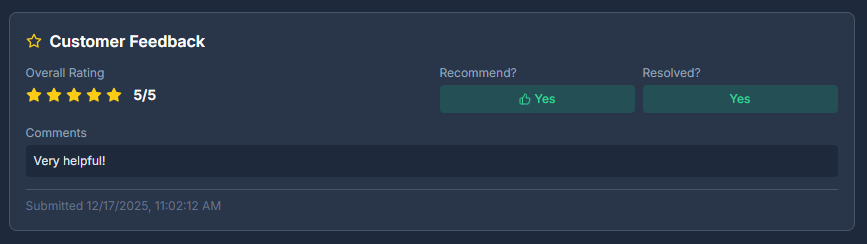
Ratings are requested when:
• An agent closes a chat session.
• The conversation involved a live agent (not just the AI bot).
• The session was active (customer engaged with the agent).
1. Rating Components
Every rating collected includes the following four key components, regardless of the platform used (Web Chat or Facebook Messenger):
| Component | Description | Values |
|---|---|---|
| Overall Rating | Star rating for the experience | 1–5 stars |
| Would Recommend | Whether the customer would recommend your service | Yes/No |
| Issue Resolved | Whether the customer's issue was successfully fixed | Yes/No |
| Comment | Optional text feedback | Free text |
2. Rating Collection Methods
Ratings are automatically triggered when a live agent clicks "Close Session". The system sends the closing message and immediately follows up with the rating request. The method of collection differs based on where the conversation took place:
A. Web Chat Rating Flow
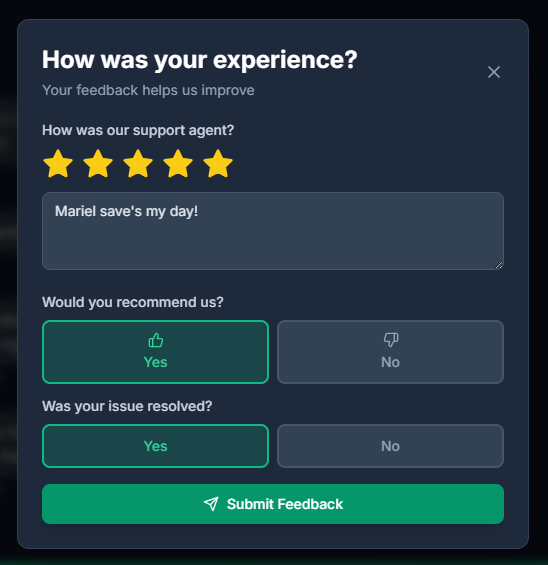
For customers using the website chat widget, feedback is collected via a visual modal popup:
1. The agent's closing message is displayed, and the chat widget shows the session is ending.
2. A popup form appears in the chat widget.
3. The form contains the star rating selector, "Would you recommend us?" toggle, "Was your issue resolved?" toggle, and an optional comment area.
4. The customer submits the rating by clicking Submit.
5. Note: Ratings are optional, and customers can close the modal without submitting feedback; incomplete ratings are not saved.
B. Facebook Messenger Rating Flow
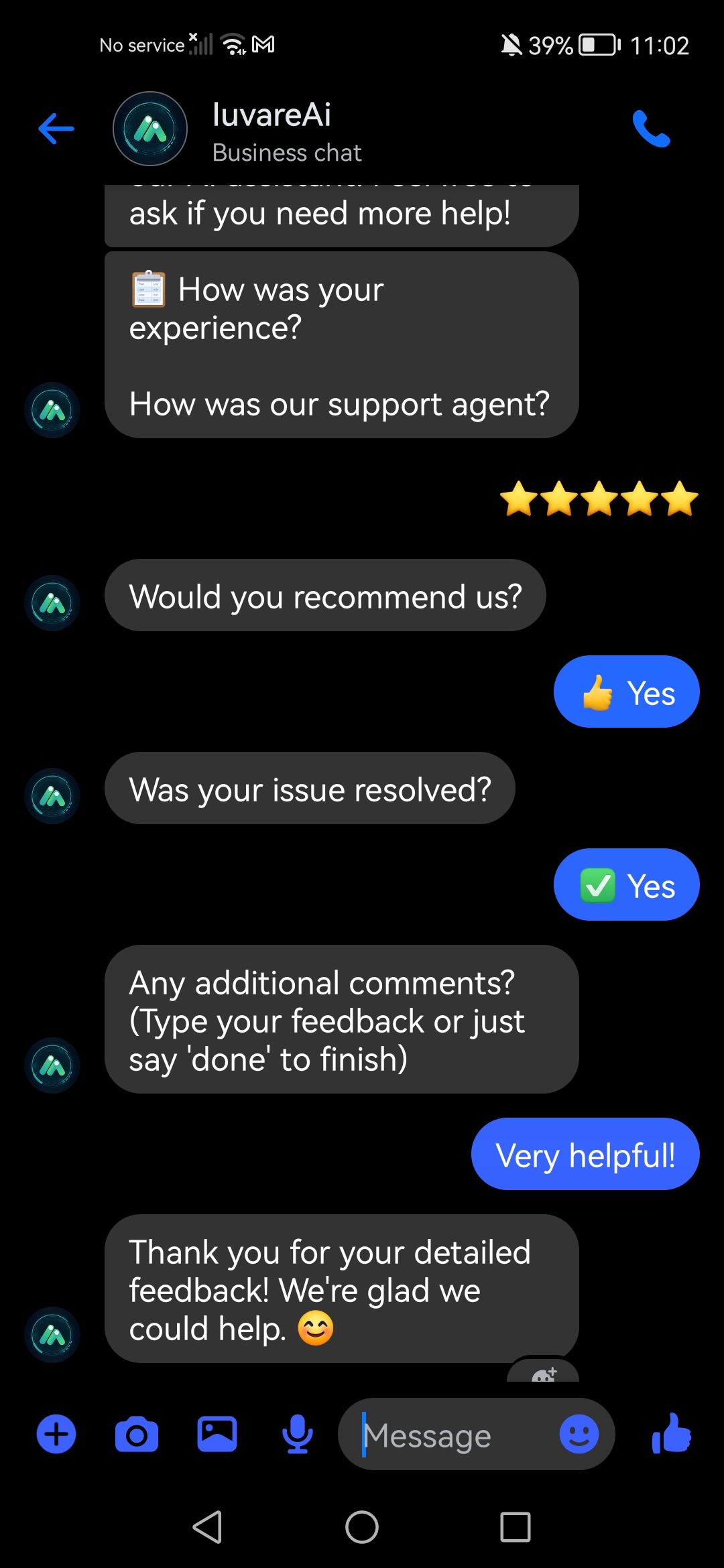
For customers on Messenger, ratings are collected via a multi-step conversational flow using quick reply buttons.
Step 1 (Star Rating): Customer taps one of the quick reply star options (1–5 stars).
Step 2 (Recommendation): Customer taps "👍 Yes" or "👎 No" to indicate if they would recommend you.
Step 3 (Issue Resolution): Customer taps "✅ Yes" or "❌ No" regarding issue resolution.
Step 4 (Optional Comment): Customer can type a comment or just say "done" to finish.
Rating Completion: If a customer leaves a positive rating (4–5 stars), they receive a "Thank you" message. If they leave a lower rating (1–3 stars), they receive a message acknowledging the feedback and promising improvement.
3. Viewing and Analyzing Ratings
A. Leads Dashboard
Individual conversation ratings are viewable in the Leads dashboard.
1. Navigate to the Leads page (/dashboard/leads).
2. Click on any rated conversation to open the details modal.
3. The rating is displayed in the conversation modal, showing the visual stars, resolution status, recommendation status, and any customer comments.
4. You can filter conversations in the Leads dashboard by rating score (1–5 stars) or by rating status (Positive 4–5, Negative 1–3, or Has Rating/No Rating).
4. Best Practices for Improving Ratings
Business owners can use the ratings data to coach agents and optimize service quality.
• During the Conversation: Agents should fully resolve the issue before closing, respond promptly, and be empathetic and professional.
• At Session Close: Agents should summarize what was accomplished, ask if anything else is needed, and thank the customer before closing the session to trigger the rating request.