
Room Availability Checker
The Room Availability Checker is a powerful tool designed specifically for front-desk and reservation agents.
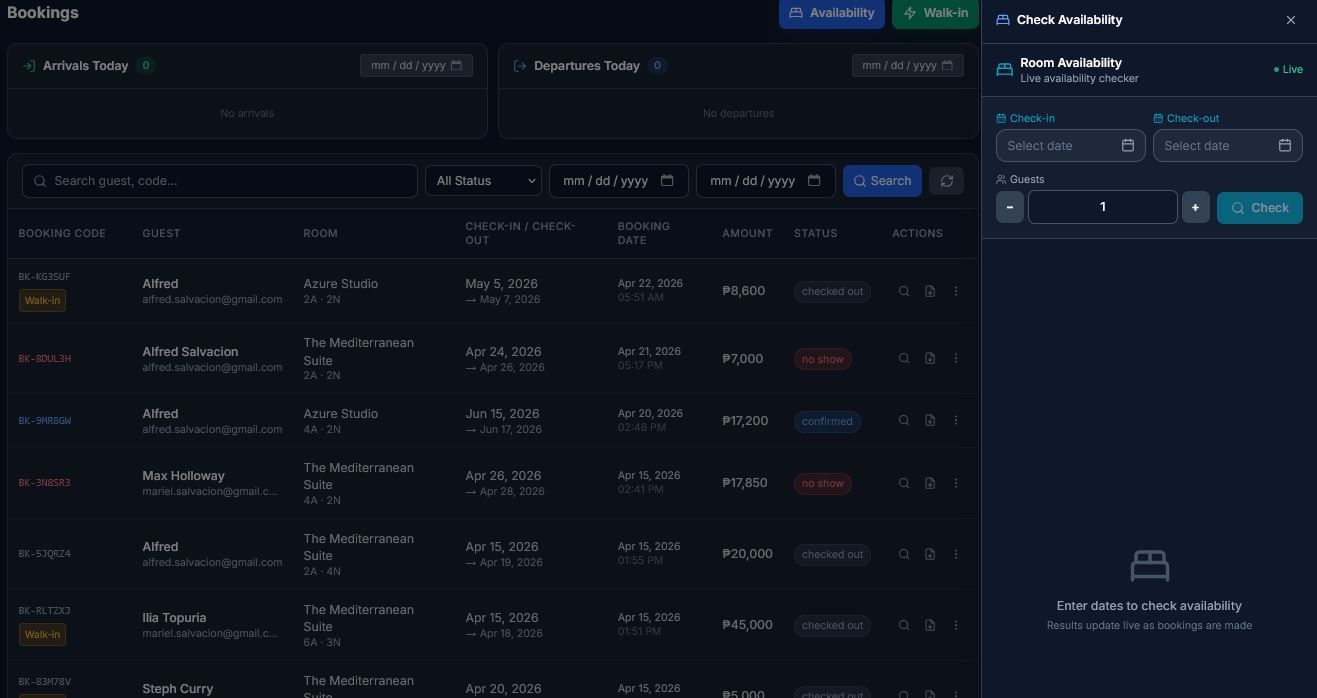
The Room Availability Checker is a powerful tool designed specifically for front-desk and reservation agents. It allows you to quickly verify which rooms are open for specific dates and guest counts, and provides the unique ability to push interactive room options directly into a live customer chat.
Access this tool by clicking the blue Availability button (with a bed icon) located in the header of the Bookings Panel.
Here is a breakdown of how to use the Availability Checker:
1. The Search FormTo check availability, fill out the straightforward search criteria at the top of the panel:
- Check-in & Check-out dates: Use the custom calendar picker. Past dates are disabled, and the check-out date will automatically default to the day after your selected check-in date.
- Guests: Use the numeric counter (from 1 up to 20 guests). The system uses this count to accurately calculate the total stay price, including any extra guest fees.Click Check to run the search. The total number of nights will be displayed just below the form.
2. Reading the Availability Results
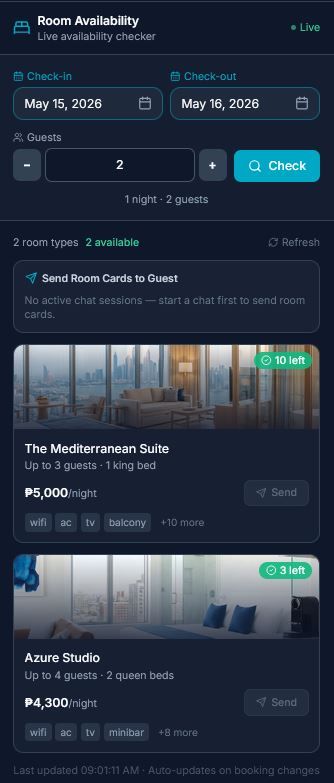
Once you run a search, the panel populates with live data:
- Summary Bar: A top bar summarizes your property's inventory, showing the total number of configured room types, a green count of available rooms, and a red count of unavailable rooms. It also displays a timestamp of your last refresh.
- Live Indicator: After your first search, a green pulsing "Live" dot appears. The panel automatically monitors for booking changes and silently updates itself (briefly showing a blue "Updating..." pulse) so you never accidentally quote an outdated room.
- Room Cards: Each room type is displayed as a card showing its primary photo, bed type, occupancy, top amenities, the per-night rate, and the exact total price for the requested stay.
- Availability Badges: An availability badge on each card clearly states how many units are left (in green) or if the room is "Full" (in red). Rooms with no availability are shown at reduced opacity so you can instantly differentiate them from open rooms.
3. Sending Room Cards to a Guest Chat
If you are actively chatting with a customer who is asking about room options, you can send them an interactive carousel of available rooms so they don't have to read a wall of text.
Here is the workflow:
- Run your availability search for their desired dates.
- Look for the "Send Room Cards to Guest" section just above the room results. If you have active chat sessions, they will be listed here as selectable buttons showing the customer's name or email.
- Tap the active session you want to target to highlight it.
- Click Send All to [Guest] to push a carousel of all available rooms into their chat, or click the Send button on an individual room card to offer just that specific room.A "Sent ✓" confirmation will appear.
- The guest will instantly receive the room cards in their chat widget. They can view the photos, pricing, and availability, and click a booking action button directly on the card to move forward with their reservation.
4. Navigation & Display Behavior
The panel adapts to the device you are using:
- Desktop: The availability checker opens as a convenient side-panel overlay alongside your main Bookings Panel.
- Mobile: Tapping the Availability button opens a dedicated full-screen view for easier reading, complete with a Back button to return to your bookings.