
Rooms
The Rooms is where you manage your property's accommodation inventory.
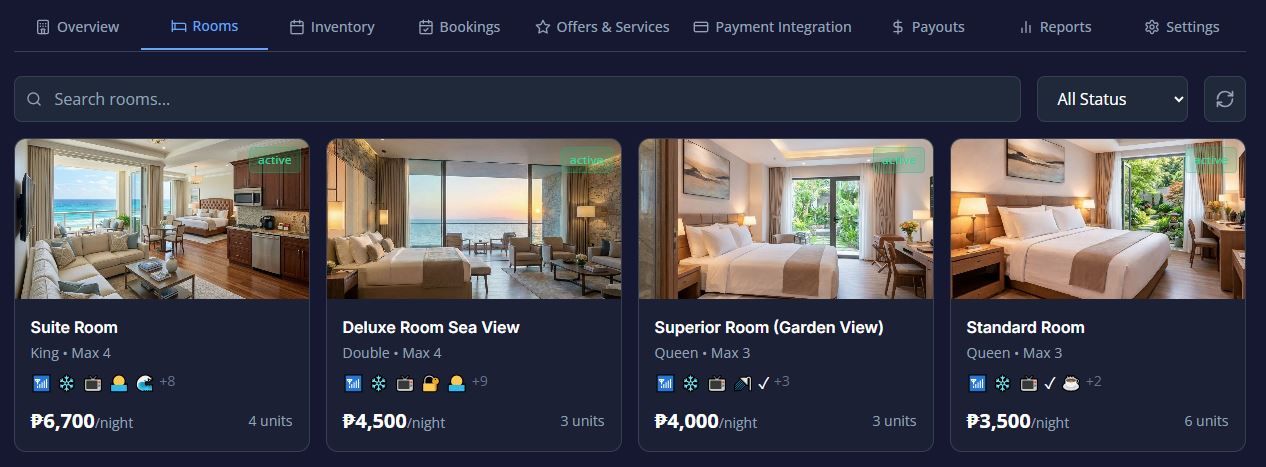
The Rooms tab is where you manage your property's accommodation inventory. In Stayfront, you manage "room types"—which represent a category of rooms (e.g., "Deluxe Ocean View Suite")—rather than just individual rooms, though a room type can contain multiple identical physical units.
Here is a breakdown of how to manage your rooms:
1. Creating and Editing Room TypesWhenever you create a new room or edit an existing one, you will use a comprehensive 4-tab modal to configure all its details:
- Basic Info Tab: This is where you define the identity and capacity of the room.
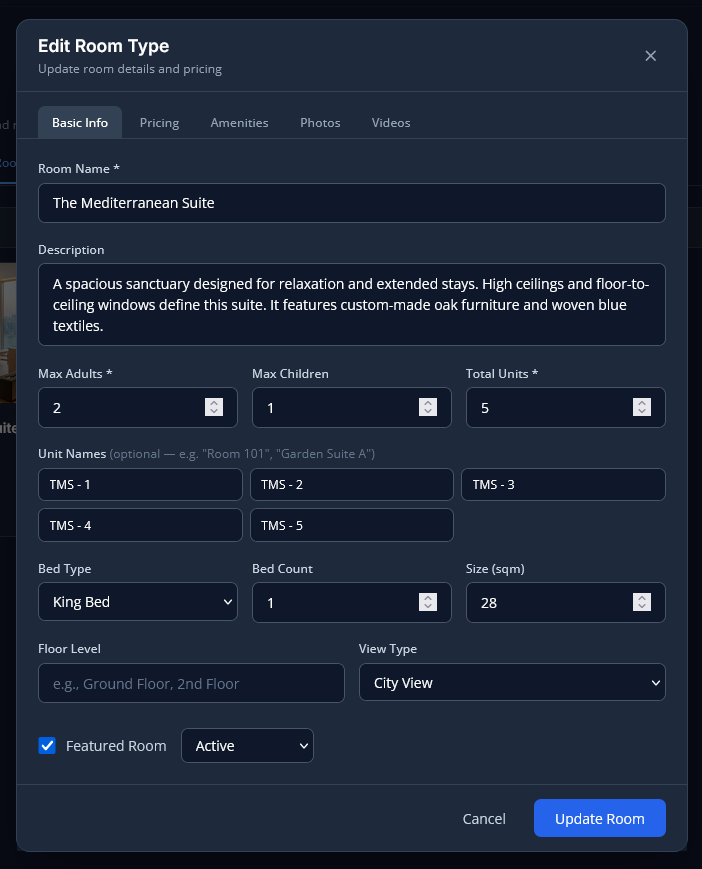
- Core Details: Room Name, Description, Room Size (sqm), Floor Level, and View Type (e.g., ocean, mountain, garden).
- Capacity & Beds: Set the Max Adults and Max Children (the total Max Occupancy is automatically computed for you). You also define the Bed Type (single, double, queen, king, twin, bunk) and the Number of Beds.
- Units: Define the "Total Units" (how many physical rooms of this type you have) and assign specific "Unit Names" (e.g., "Unit 1", "Villa A").
- Featured Toggle: Check this box if you want this specific room type to be highlighted in your guest-facing booking widget.
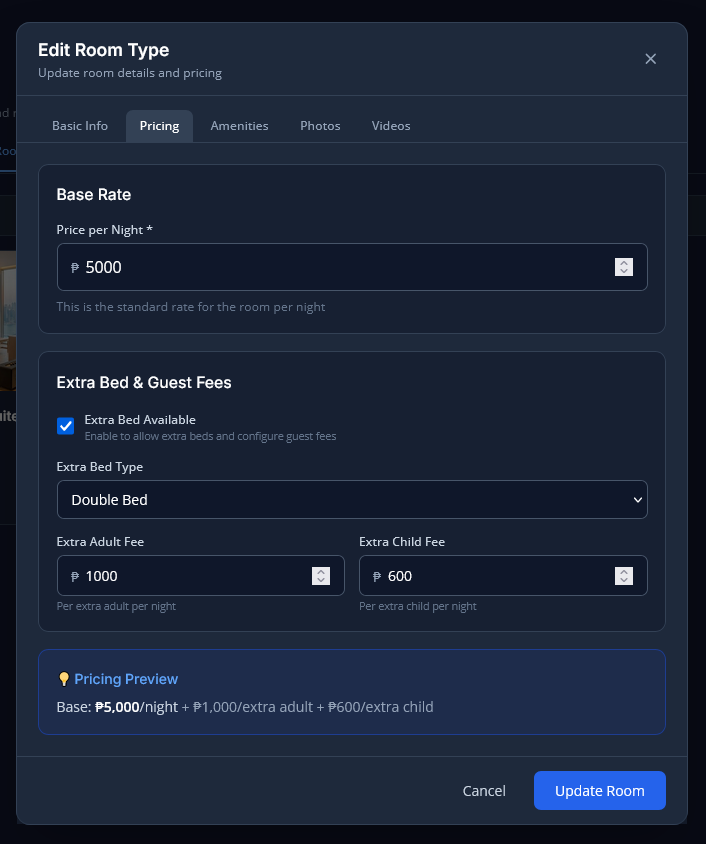
- Pricing Tab: Set your financial baseline here. You must enter a Base Price per night. You can also configure an Extra Adult Price and Extra Child Price, as well as toggle whether an Extra Bed is available and specify its type.
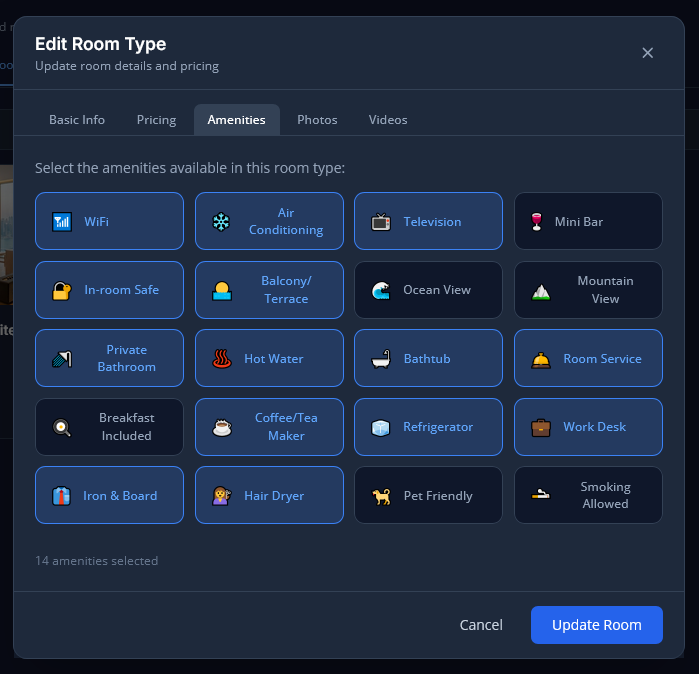
- Amenities Tab: Select from 21 specific in-room amenities (such as Wi-Fi, air conditioning, TV, balcony, private bathroom, and whether the room is pet-friendly or smoking-allowed). (Note: General property-wide amenities are managed separately in your Settings).
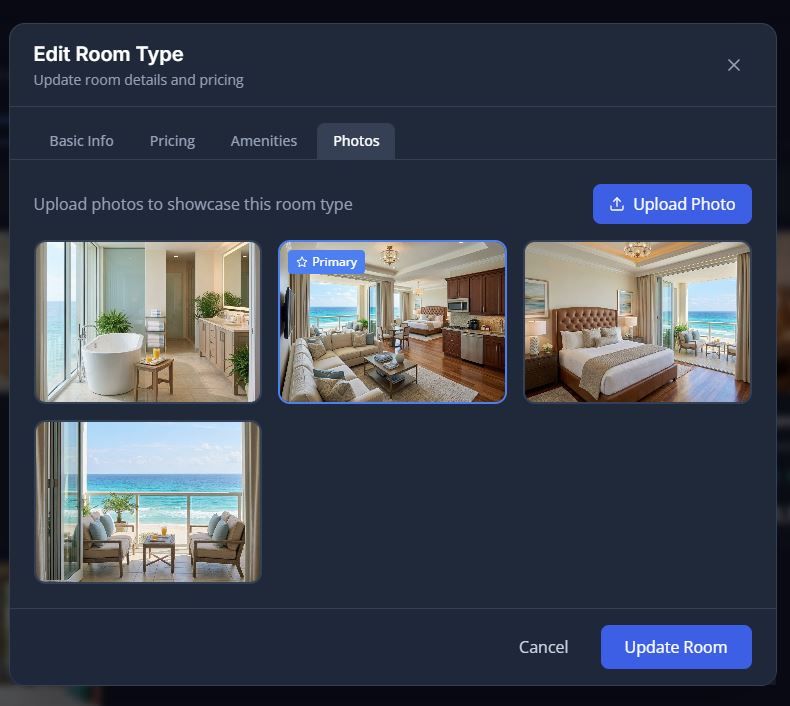
- Photos Tab: Upload images of the room that will be shown to guests in the booking widget. The system accepts JPEG, PNG, GIF, and WebP formats, with a maximum file size of 20MB per photo.
2. Room Management Actions
From the main Rooms tab dashboard, you can quickly manage your existing room types:
- Toggle Status: You can instantly change a room's status to Active (visible and bookable by guests), Inactive (hidden from the widget), or Maintenance (temporarily unavailable).
- Delete Room: You can delete a room type entirely, but only if it has no active bookings (tentative, pending, confirmed, or checked-in). If there are active bookings attached to the room, the system will prevent deletion to protect your reservations.
3. Filtering and Search
If you manage a large property with many room types, you can use the filtering tools at the top of the tab to find specific rooms quickly. You can search by room name, or filter by:
- Status (Active, Inactive, Maintenance)
- Featured rooms
- Price range
- Minimum occupancy
- Bed type or View type