
Storefront User Guide
Welcome to BrainBots Storefront! This guide will help you transform your AI chatbot into a 24/7 sales assistant.
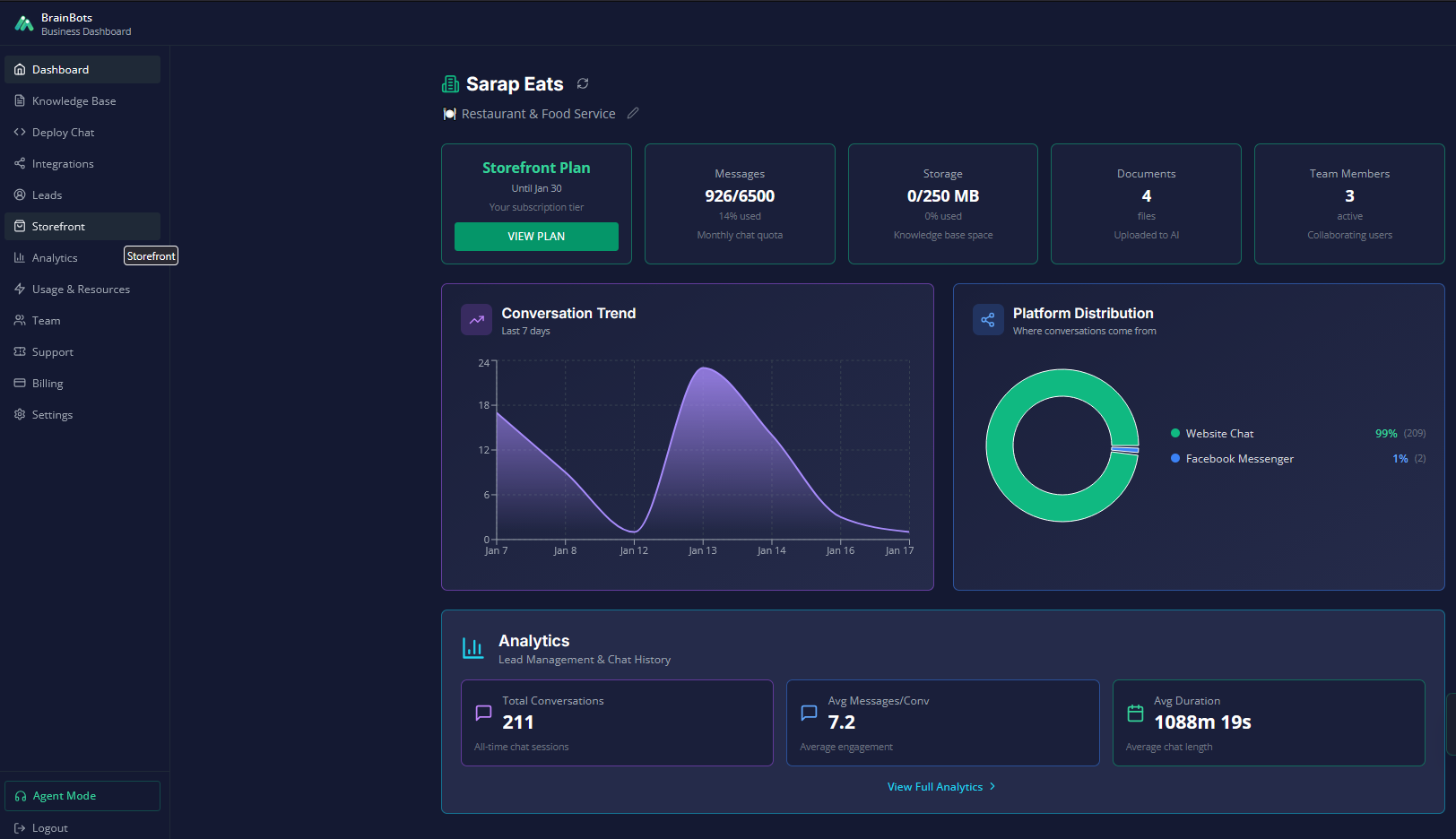
1. Getting StartedStorefront allows customers to browse products, ask questions, and make reservations directly inside your Facebook Messenger or Website chat.
• Requirements: You must be on the Storefront Plan (₱3,000/mo).
• Capacity: You can manage up to 30 products.
• Access: Log in to your Business Dashboard and select Storefront from the left sidebar.
2. Managing Your Products
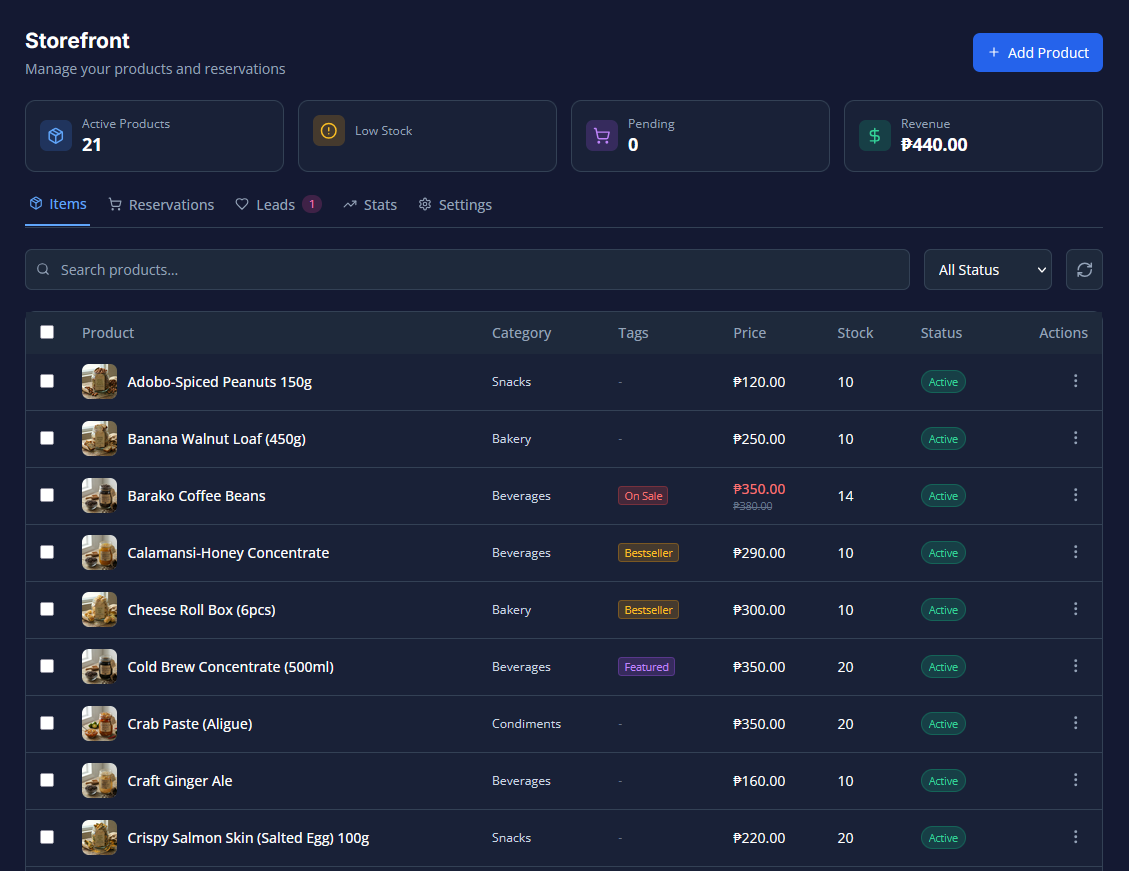
Your product catalog is what customers see in the interactive chat carousel.
Adding a New Product
1. Go to the Products tab and click + Add Product.
2. Basic Details: Enter the Name (max 100 characters), Price, and a description.
3. Images & Video: Upload up to 5 images (JPEG, PNG, GIF). You can also add a YouTube or Vimeo link to show a video demo directly in the chat.
4. Inventory: Set your current Quantity and a Low Stock Threshold (default is 5) to receive alerts when you are running low.
Setting Up Variants (Sizes, Colors, etc.)
If your product has options (like "Small, Medium, Large" or "Red, Blue"), use Option Groups:
1. Click + Add Option Group.
2. Name the group (e.g., "Size").3. Add the options. You can set a Price Adjustment for specific versions (e.g., add +₱50 for "Large").
Product Status
• Active: Visible in the chat.
• Archived: Hidden from chat (use this for old products with reservation history instead of deleting them).
• Shareable Links: Click the 🔗 icon on any product to get a direct link that opens the chat specifically for that item.
3. Handling Reservations
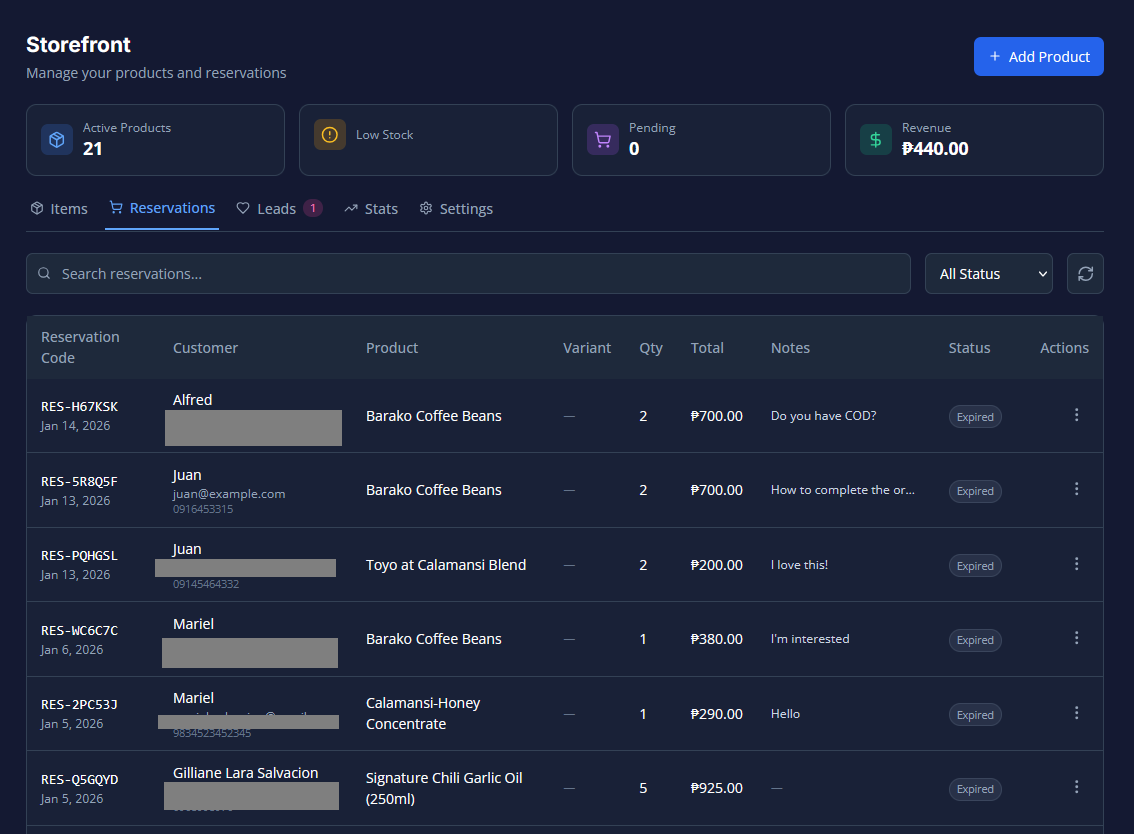
Storefront uses a Reservation System. This means the AI secures the order, but you (the business owner) handle the payment collection and delivery.
The Workflow
1. Customer Reserves: They select an item in chat and click "Reserve."
2. Confirmation: The system generates a code (RES-XXXXXX) and sends an email to both you and the customer.
3. Payment & Fulfillment: You contact the customer (or they follow your email instructions) to pay via GCash, Maya, or Bank Transfer.
4. Fulfillment: Once you have delivered the item or received payment, go to the Reservations tab, click the ⋮ menu, and select Mark as Fulfilled.
Cancellations & Expiration
• To Cancel: Click the ⋮ menu and select Cancel. You must enter a reason. The stock will automatically be restored to your inventory.
• Auto-Expiration: If an order isn't fulfilled within the set time (default is 24 hours), it will expire automatically, and stock will be restored.
4. Managing Leads (Save for Later)
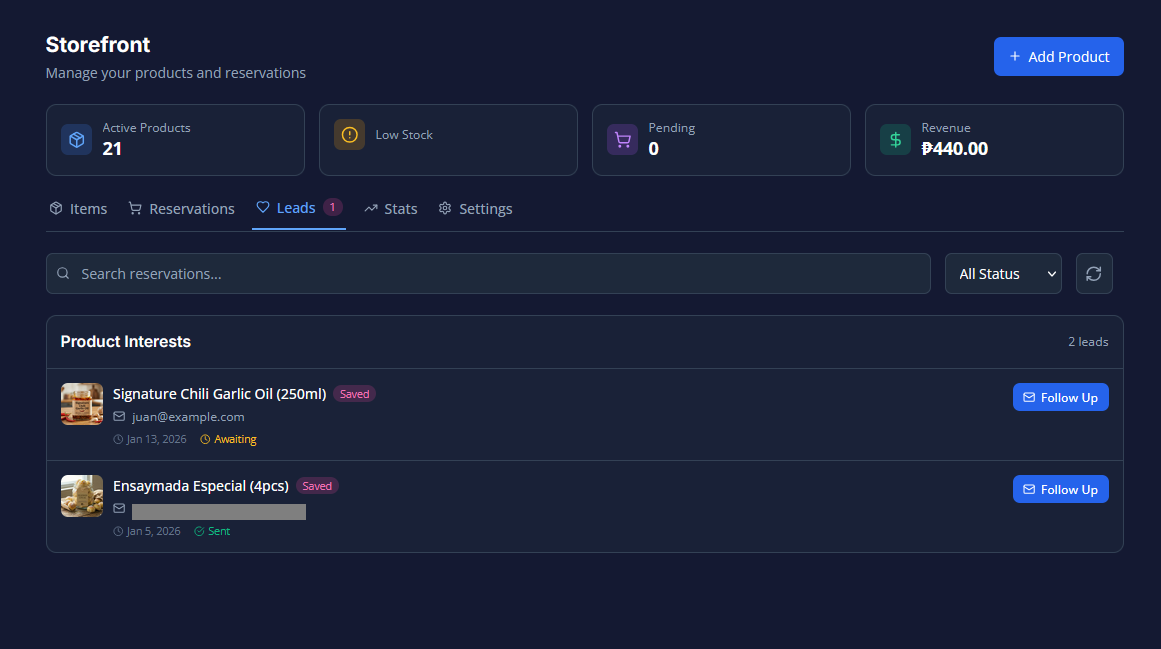
Not every customer buys immediately. Storefront captures Leads when a customer clicks "Save for Later" on a product.
1. Go to the Leads tab to see customers who showed interest.
2. Click Follow Up to open the email editor.
3. ✨ Polish with AI: Click this button to let the AI rewrite your email to sound more professional and persuasive.
5. Storefront Settings
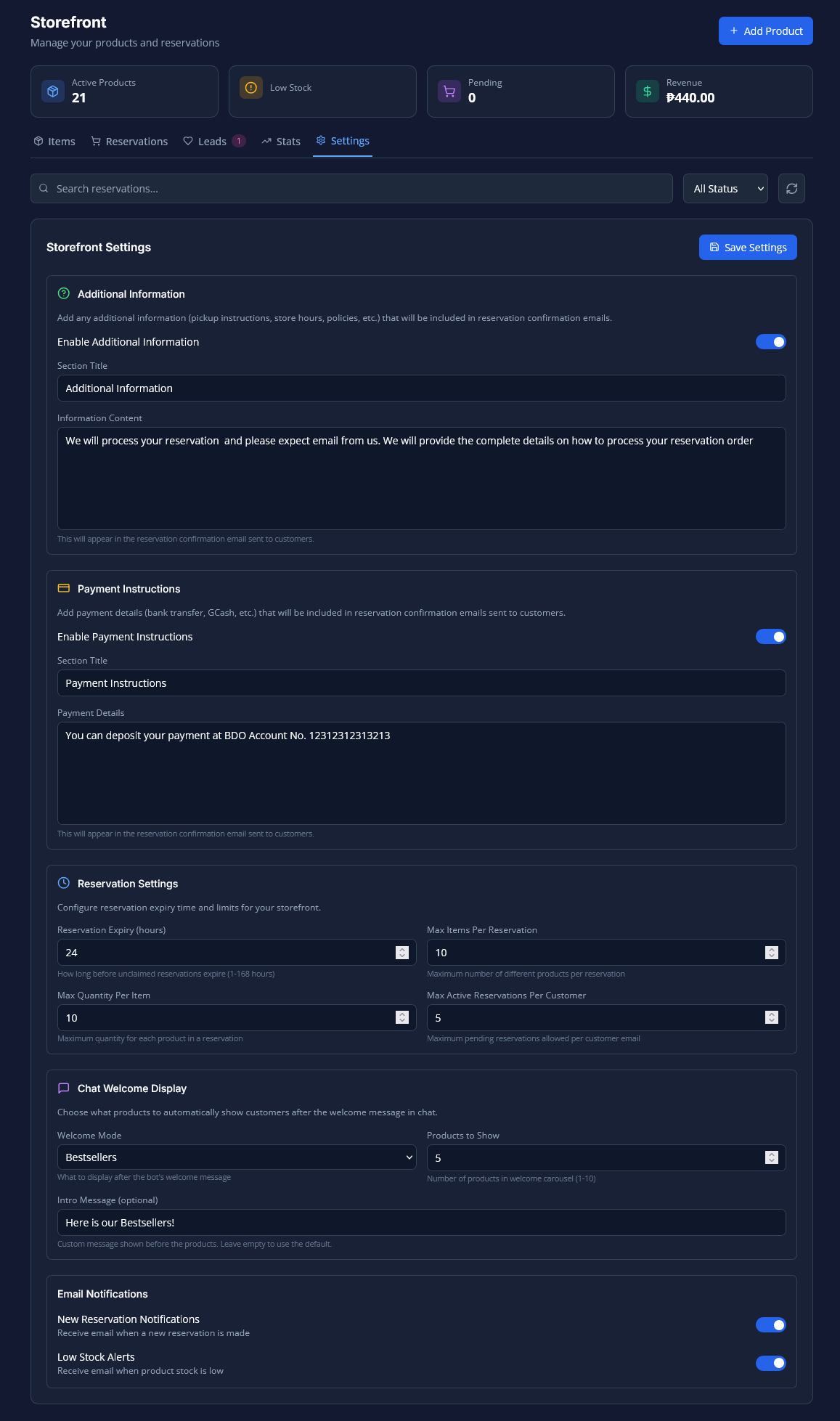
Customize how your store communicates with customers in the Settings tab.
• Payment Instructions: Add your GCash, Maya, or Bank details here. These will appear automatically in the reservation confirmation emails.
• Pickup/Additional Info: Add your store hours, location, or special instructions.
• Chat Welcome Display: Choose what customers see first when they open the chat (e.g., Bestsellers, Featured Products, or All Products).
6. Analytics
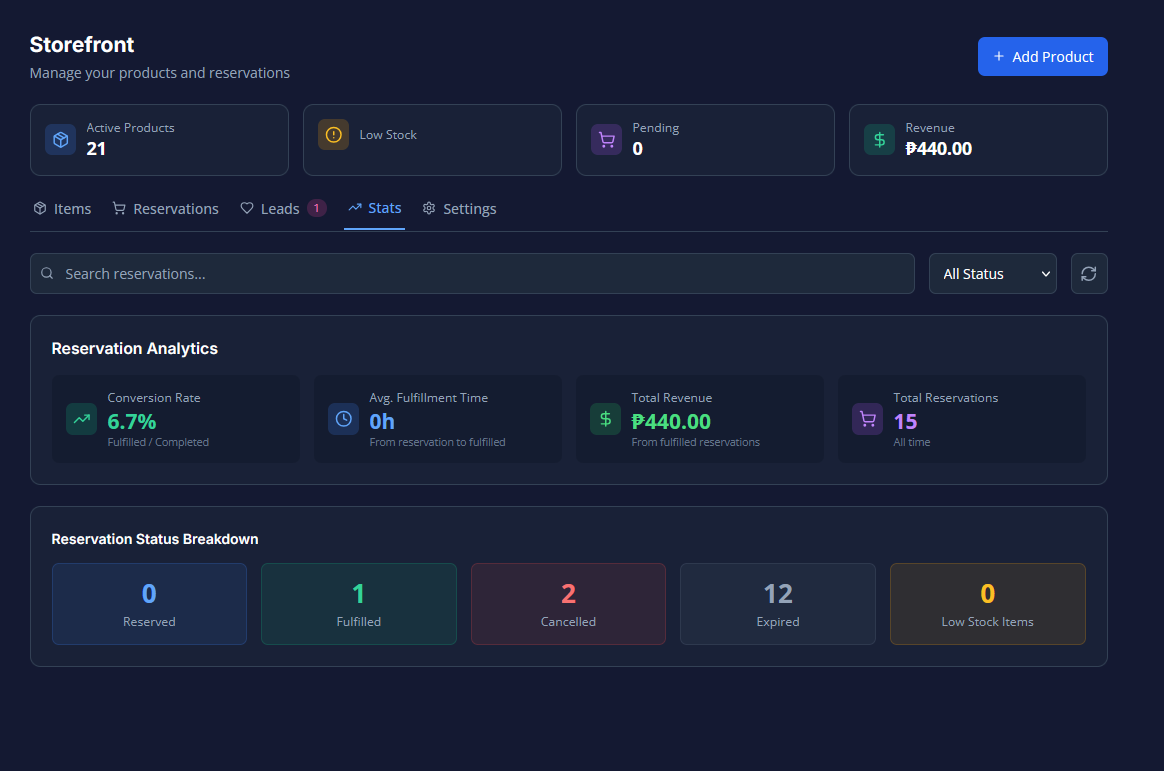
Use the Analytics tab to track your business growth:
• Top Products: See which items are viewed and reserved the most.
• Conversion Rate: Track how many visitors actually make a reservation.
• Revenue: Monitor the total value of your fulfilled orders.
7. Troubleshooting & FAQ
Q: My products aren't showing in the chat.
• Check if the product Status is set to "Active".
• Ensure your Storefront subscription is active.
Q: I didn't receive an email notification.
• Check your Spam/Junk folder.
• Verify your email address in the Notification Settings.
Q: How do I collect payment?
• BrainBots does not process payments. You must arrange payment (GCash, COD, etc.) directly with the customer using the contact info provided in the reservation.
Q: Can I delete a product?• Yes, but if a product has active reservations, it is better to Archive it to keep your records safe.