
Support Page
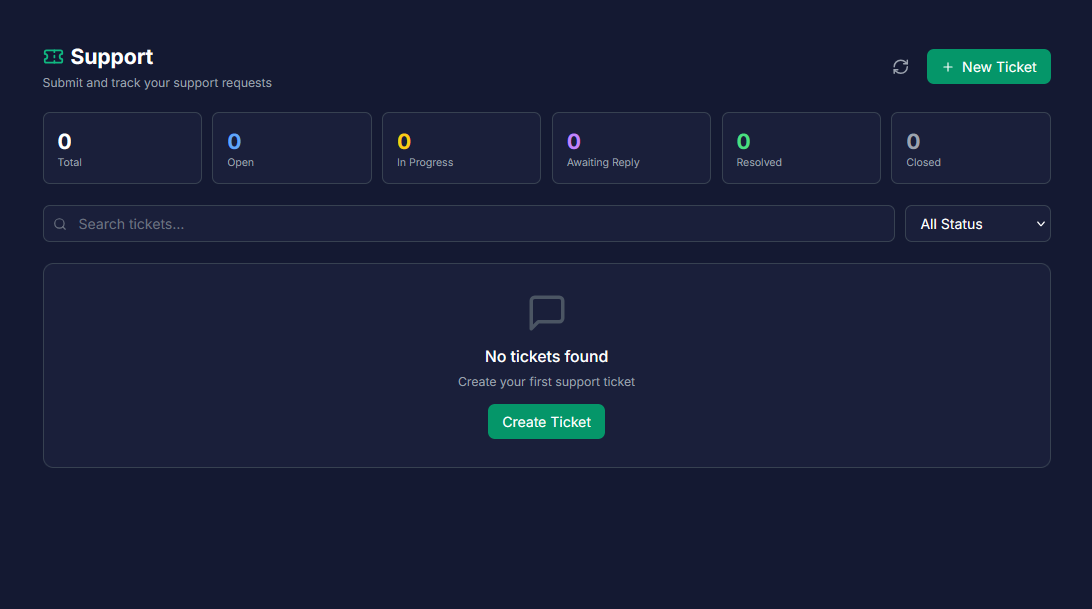
The Support page is your central portal for communicating with the BrainBots team.
Here, you can submit new requests, track the progress of ongoing issues, and review your complete support history, covering technical problems, billing inquiries, and feature suggestions.
1. Access & Plan Requirements
How to Access: Click the "Support" link in the left sidebar menu.
| Plan | Support Access | Benefits |
|---|---|---|
| Freemium | ❌ Locked | Must upgrade to access full features |
| Basic | ✅ Full Access | 24-hour response time, ticket tracking, email notifications |
| Pro | ✅ Priority Support | Includes prioritized placement in the support queue |
2. Tracking Tickets (Stats and Status Flow)
Ticket Stats Cards
The six stats cards at the top of the page show the total count of tickets categorized by their current status.
| Status | Color | Description |
|---|---|---|
| Total | ⚪ | All tickets ever created. |
| Open | 🔵 | New tickets awaiting a response. |
| In Progress | 🟡 | Tickets actively being worked on by the support team. |
| Awaiting Reply | 🟣 | Waiting for your response or information. |
| Resolved | 🟢 | The issue has been successfully fixed. |
| Closed | ⚫ | The ticket is complete and archived. |
Status Definitions and Required Actions
When a ticket's status changes, it indicates what action is needed (or not needed) from you.
| Status | Meaning | Your Required Action |
|---|---|---|
| Open | Just submitted. | Wait for support to respond. |
| In Progress | Being worked on. | Wait for an update. |
| Awaiting Reply | We need information from you. | Reply to the ticket promptly. |
| Resolved | Issue fixed. | Reopen if further assistance is needed,. |
| Closed | Ticket complete. | Reopen or create a new ticket. |
Note: Only the BrainBots support team can close a ticket. You can reopen closed or resolved tickets within 30 days if you need further assistance on that specific issue,.
3. Creating a New Support Ticket
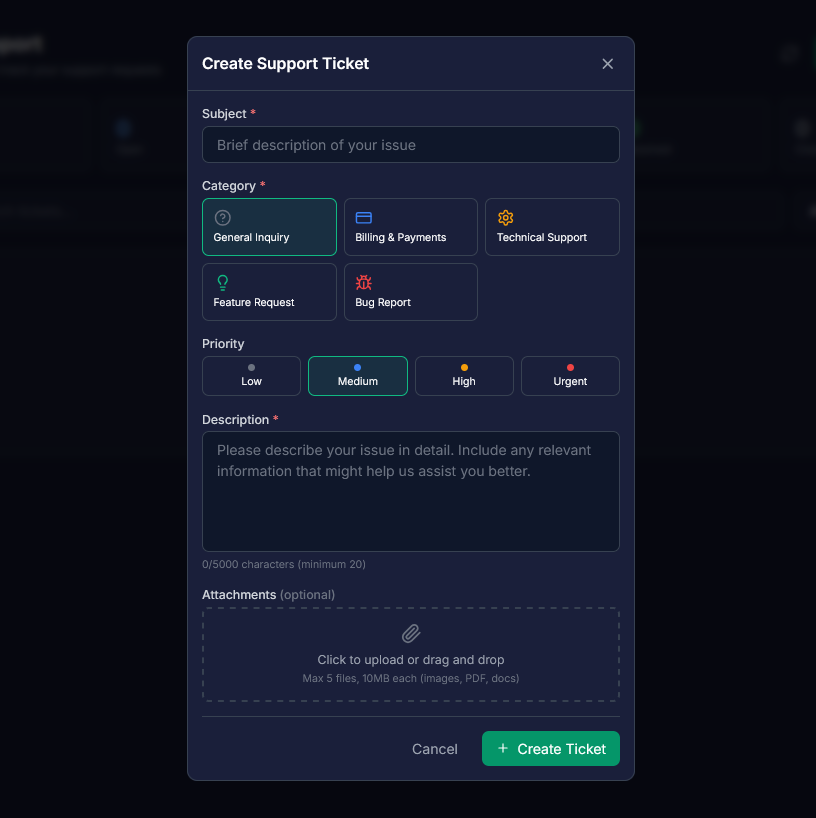
Click the "New Ticket" button to open the creation form.
A. Ticket Categories
Selecting the correct category helps route your request to the appropriate team for faster resolution.
| Category | Icon | Use For |
|---|---|---|
| General Inquiry | ⚪❓ | General questions. |
| Billing & Payments | 🔵💳 | Payment issues, invoices. |
| Technical Support | 🟠⚙️ | Technical problems. |
| Feature Request | 🟢💡 | Suggest new features. |
| Bug Report | 🔴🐞 | Report bugs or errors. |
B. Priority Levels and Response Times
Response times are determined by the priority level you select.
| Priority | Color | Response Time |
|---|---|---|
| Urgent | 🔴 | 4 hours |
| High | 🟠 | 12 hours |
| Medium (Default) | 🔵 | 24 hours |
| Low | ⚪ | 48 hours |
C. Required Fields
1. Subject: A brief description of the issue (min 5, max 255 characters).
2. Category: Select one of the five available options.
3. Description: A detailed explanation of the issue (min 20, max 5,000 characters).
D. Attachments
You can attach up to 5 files per ticket, with a maximum size of 10 MB per file,. Supported formats include images (JPG, PNG, GIF, WEBP), documents (PDF, DOC, DOCX, TXT), and spreadsheets (CSV, XLSX, XLS).
4. Immediate Help Resources
For issues that cannot wait for a ticket response, you have alternative support methods:
1. In-App Chat Assistant: Click the chat bubble icon in the bottom-right corner of your screen to speak with the BrainBots Support Assistant.
2. Direct Email: You may email support directly at support@iuvareai.com.
5. Best Practices for Faster Resolution
1. Be Specific in the Subject: Use the subject line to summarize the issue (e.g., "Bot Configuration: Tone settings not saving").
2. Detail the Description: Explain what happened, what you expected to happen, and the steps you took that led to the issue.
3. Attach Evidence: Always include screenshots of errors or relevant configuration pages when reporting bugs,.
4. One Issue Per Ticket: Create separate tickets for distinct problems (e.g., one ticket for a billing question and a second ticket for a widget display bug).
5. Monitor Your Email: You will receive notifications when support replies or when the status changes, ensuring you don't miss a request for information.