
Team Management
The Team page is where you expand your workforce.
It allows you to invite "Agents" (human support staff) to your account. These agents can log in to handle live chats when the AI cannot answer a question, or when a customer specifically requests human help.
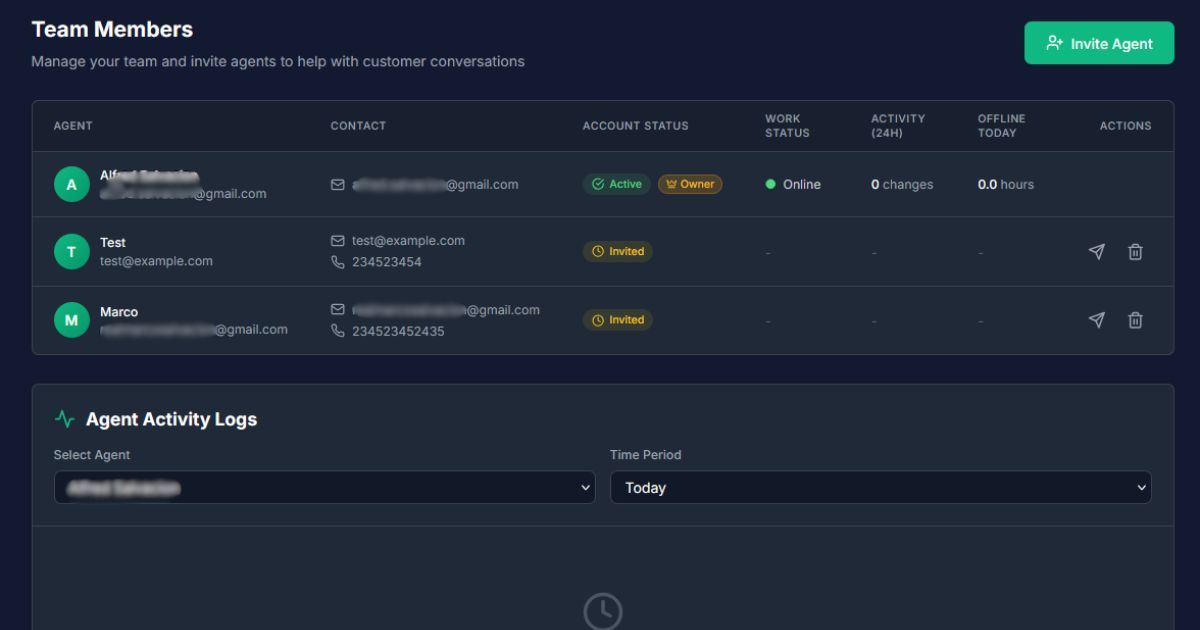
How to Access: Click "Team" in the left sidebar menu.
Plan Requirement: This feature is exclusive to Basic and Pro plans.
• Freemium: 0 Agents included.
• Basic: 1 Agent included.
• Pro: 3 Agents included.
Need more staff? You can purchase additional "Agent Seats" at any time from the Usage & Resources page.
2. Inviting a New Agent
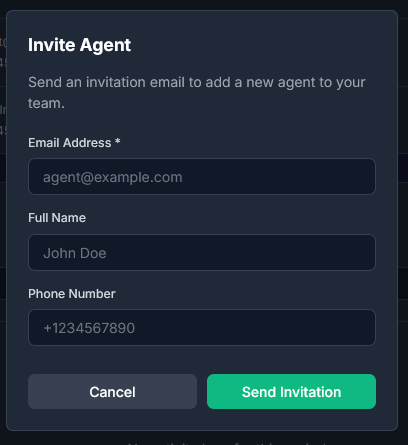
To add a team member, you need an available "Slot" (Seat).
1. Click the "Invite Agent" button in the top right.
2. Email: Enter the agent's email address.
3. Name: Enter their display name (customers will see this).
4. Phone: (Optional) Add a contact number.
5. Click "Send Invitation.
"What happens next? The agent will receive an email with a unique link to set up their password. Once they log in, their status will change from Invited (Yellow Clock) to Active (Green Check).
3. Monitoring Team Activity
As a Business Owner, you can track when your agents are working. The list view displays:
• Work Status: Real-time visibility of who is Online (Green), Away (Yellow), Offline (Gray), or DND (Do Not Disturb - Purple).
• Activity (24h): Shows how many times the agent changed their status in the last day.
• Offline Today: Tracks how many hours the agent spent offline during business hours.
Detailed Logs: Click on any agent's name to see a detailed history of their Login/Logout times and status changes for the last 7 or 30 days.
4. Business Owner Agent Mode
Handle customer chats yourself without using an agent seat.
As the Business Owner, you are automatically a member of the support team. You can switch between managing the business and answering live chats instantly.
How to Switch to Agent Mode
1. Look at the bottom left corner of the sidebar menu (just above the Logout button).
2. Click the "Agent Mode" button.
3. The system will automatically log you into the Agent Dashboard.
What you can do in Agent Mode:
• Answer live support chats from customers.
• Set your personal Work Status (Online, Away, DND).
• Manage your personal agent settings.
• To return to the Business Dashboard, log out of Agent Mode or use the return link provided.
Owner Slot Exemption
A unique benefit for the Business Owner is the Agent Count Exemption.
• The Rule: The Business Owner is automatically added to the Team list with the status "Active" and the "Owner" badge.
• The Benefit: The Owner does NOT count toward your plan's Agent Limit.
Example Scenario (Basic Plan):The Basic Plan includes 1 Agent Seat.
• You (Owner): Can use Agent Mode to chat (Does not count).
• + 1 Invited Employee: Can use the included seat.
• Total Staff: 2 People chatting (You + 1 Agent).
| Plan | Owner (Agent Mode) | Included Staff Seats | Total Team Capacity |
|---|---|---|---|
| Freemium | ✅ Included | 0 | 1 (You) |
| Basic | ✅ Included | 1 | 2 (You + 1) |
| Pro | ✅ Included | 3 | 4 (You + 3) |
Note: Even on the Freemium plan, you (the Owner) can still use Agent Mode to answer chats yourself, even though you cannot invite other employees yet.