
The Settings
The Settings tab is the configuration hub for your entire property.
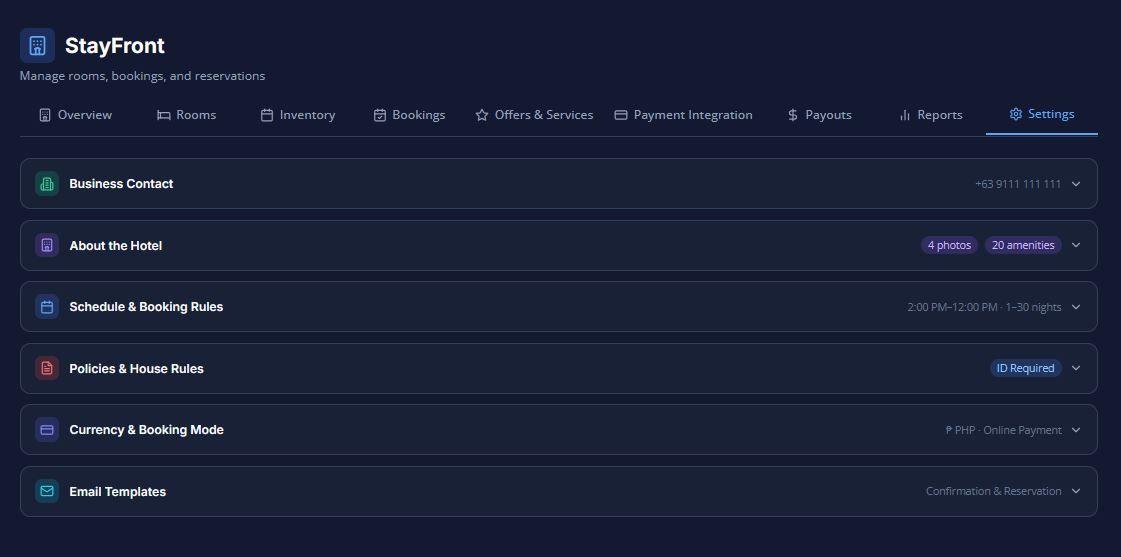
The Settings tab is the configuration hub for your entire property. The rules, policies, and details you set here apply platform-wide, shaping both the guest-facing booking widget and the behavior of your AI assistant.
Here is a breakdown of the different configuration sections available:
1. Business Contact
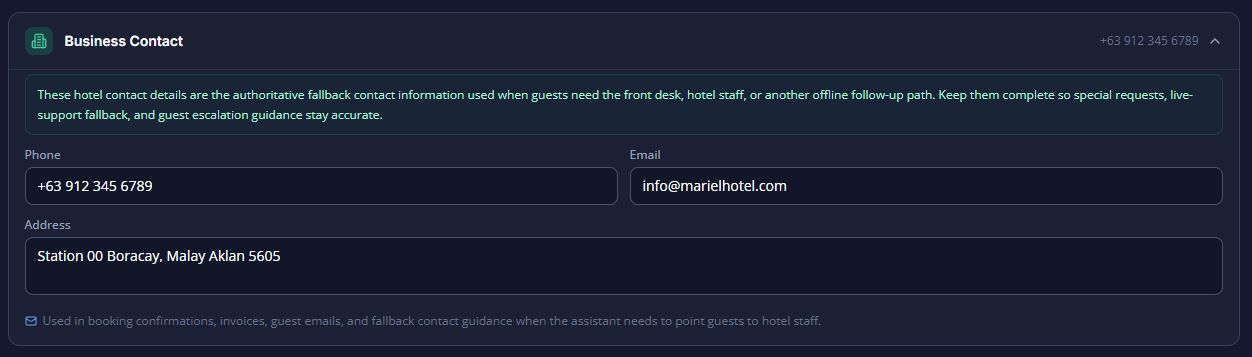
This section holds your authoritative property contact details. These are shown to guests and act as the fallback contact method if a guest requests to speak to a human and no live agents are available.
- Fields: Hotel Phone, Hotel Email, and Business Address.
2. About the Hotel
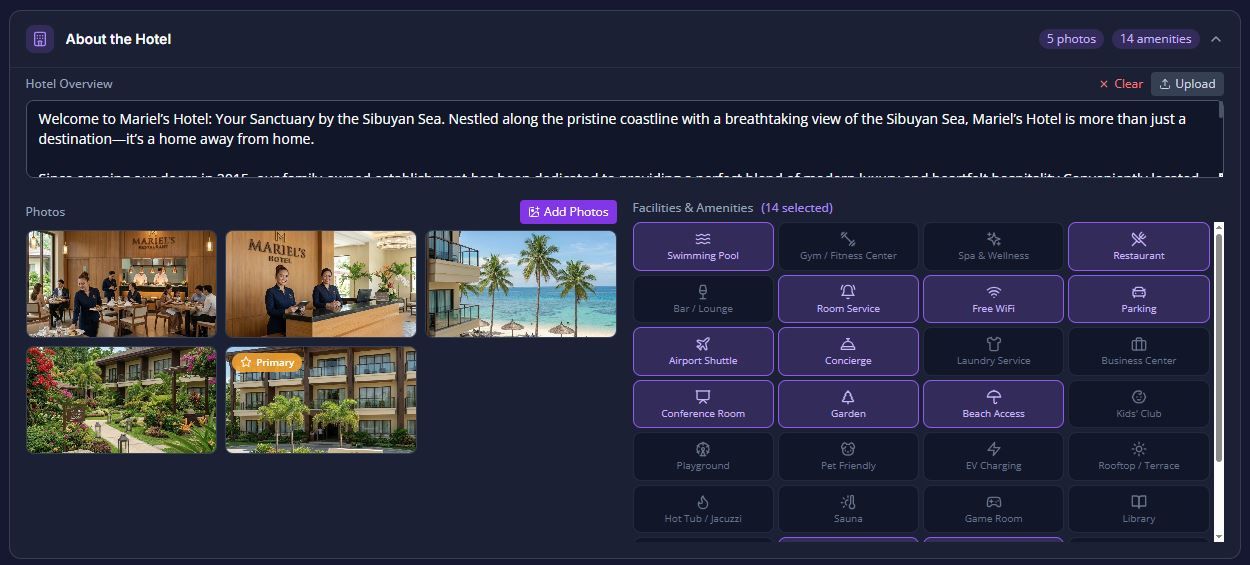
This is where you define your property's overall profile. (Note: In-room amenities are configured separately in the Rooms tab).
- Hotel Overview: You can type a free-text description or upload a document (PDF, DOCX, TXT, MD) explaining what makes your property unique.
- Hotel Photos: Upload primary photos of your property and grounds.
- Property Amenities: Select from 33 property-wide amenities, such as a swimming pool, 24-hour front desk, parking, and gym.
3. Schedule & Booking Rules
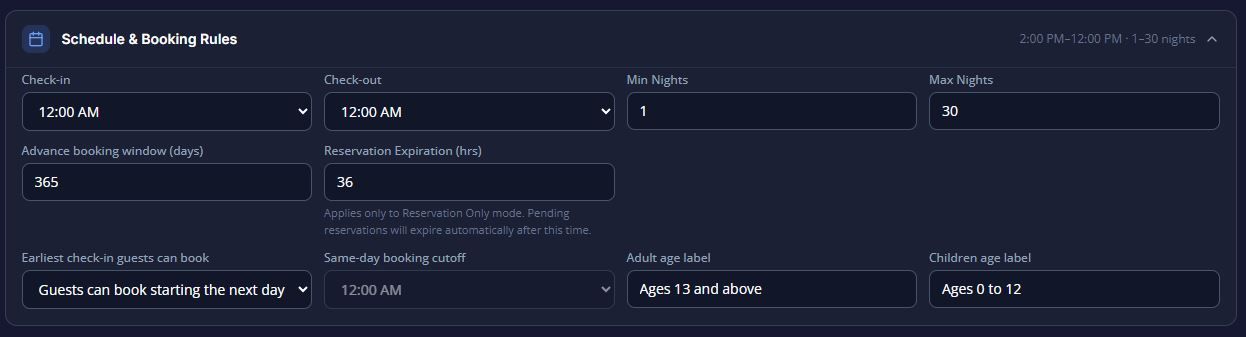
This section dictates when guests can arrive and how far in advance they must book:
- Times & Durations: Set your standard Check-in and Check-out times, as well as Minimum and Maximum Nights allowed per stay.
- Booking Windows: Configure how far in advance guests can book (Advance Booking Days) and the earliest they can check in (e.g., same-day, next day, or 2 days from today). If you allow same-day bookings, you can also set a specific Same-Day Cutoff Time.
- Reservation Expiration: If you use "Reservation Only" mode, you can set how many hours a tentative booking stays open before it expires. (This is hidden in Online Payment mode).Age Labels: Define custom text for guest ages (e.g., Adult: "Ages 13 and above", Child: "Ages 0 to 12").
4. Policies & House Rules
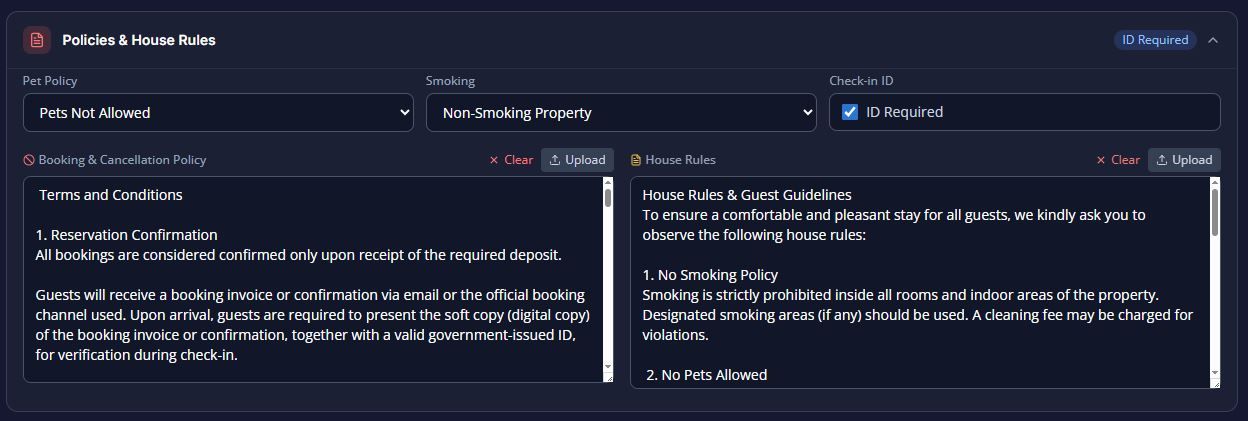
These are the guest-facing rules displayed directly during the booking flow:
- Quick Toggles: Set your Pet Policy (e.g., allowed with fee, not allowed), Smoking Policy (e.g., designated areas only), and whether a valid ID is required at check-in.
- Detailed Policies: Provide full text (or upload documents) for your Booking & Cancellation Policy and your House Rules.
5. Currency & Booking Mode
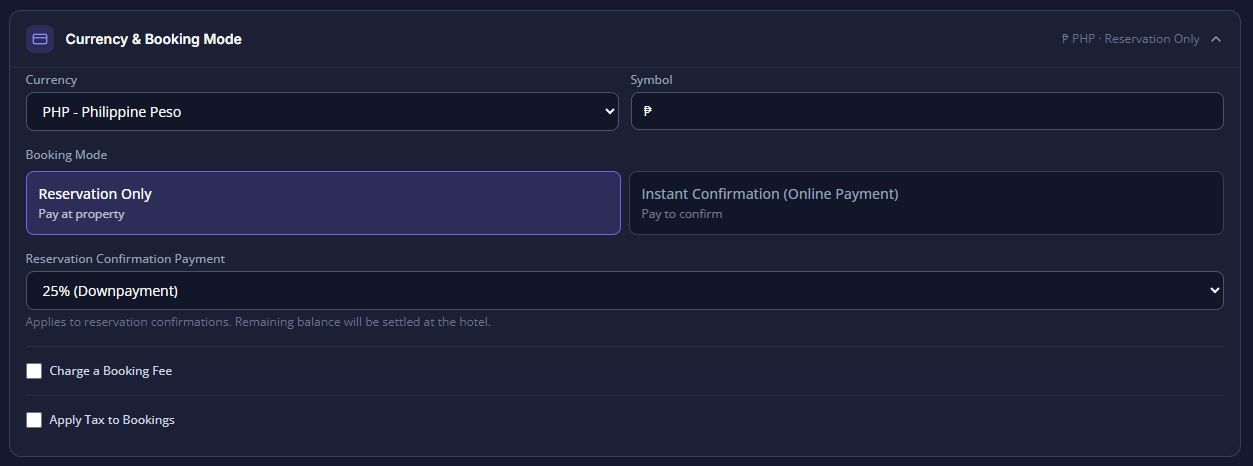
This section handles your foundational financial rules (working in tandem with your Payments tab):
- Currency: Select your operating currency (e.g., PHP, USD, EUR).
- Booking Mode: Choose between
reservation_only(pay at property/manual) oronline_payment(instant confirmation). (Note: Commission-plan tenants are locked to online payment mode). - Deposit Percentage: If using reservation-only mode, set whether guests must pay 25%, 50%, or 100% to manually confirm a booking.
- Fees & Taxes: Enable and configure custom Booking Fees (fixed or percentage) and Taxes (like VAT), including whether the tax is already included in your displayed room prices.
6. Email Templates
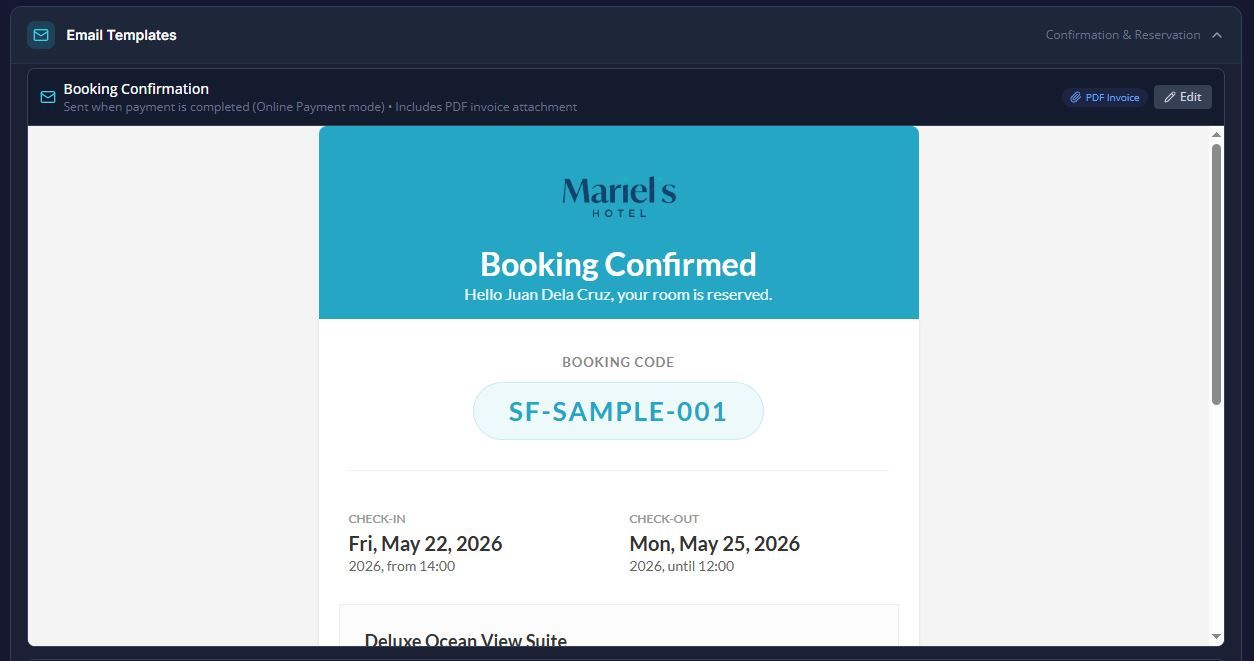
Customize the automated emails sent to guests for various booking events:
- Confirmation Email: Sent when an online payment is completed or a reservation is manually confirmed (includes PDF invoice).
- Reservation Request: Sent when a guest submits a tentative reservation, containing specific Payment Method Instructions.AI Polish: The email editor supports rich text and features an "AI Polish" button that helps improve your email copy.