
Walk-In Bookings
A Walk-In Booking is created directly at the front desk for guests who arrive at your property without a prior reservation.
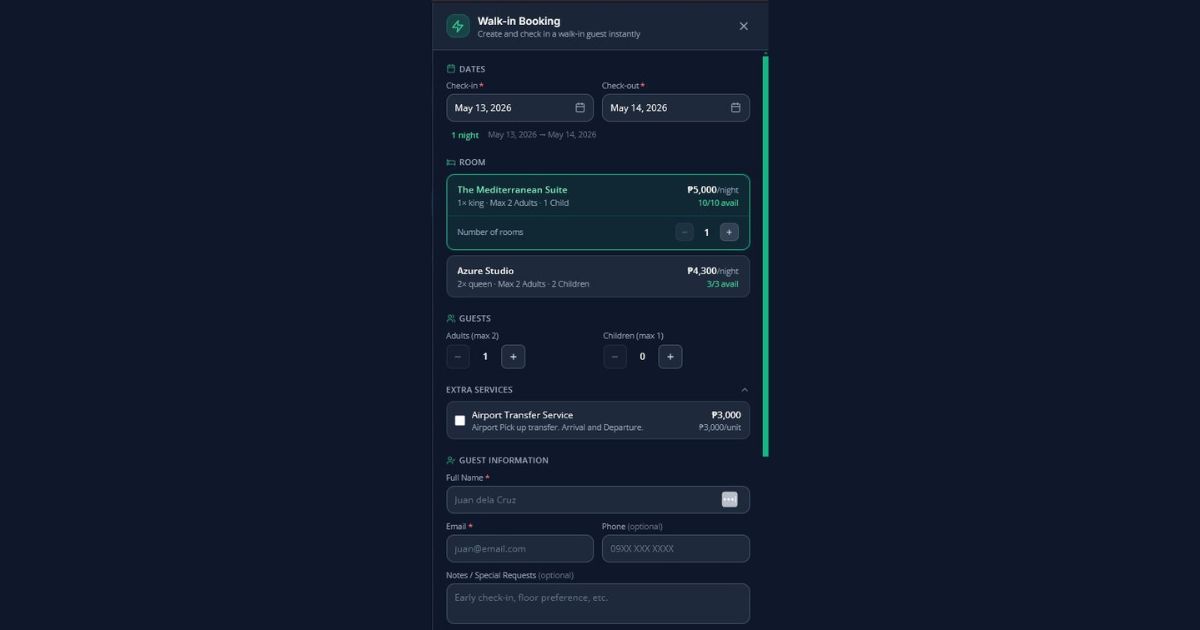
A Walk-In Booking is created directly at the front desk for guests who arrive at your property without a prior reservation. This tool allows you to capture guest details, room preferences, dates, and payment on the spot.
To get started, simply click the Walk-in button (the green button with a lightning bolt icon) located in the header of the Bookings Panel.
Here is the correct, step-by-step breakdown of how to fill out the Walk-In Booking form:
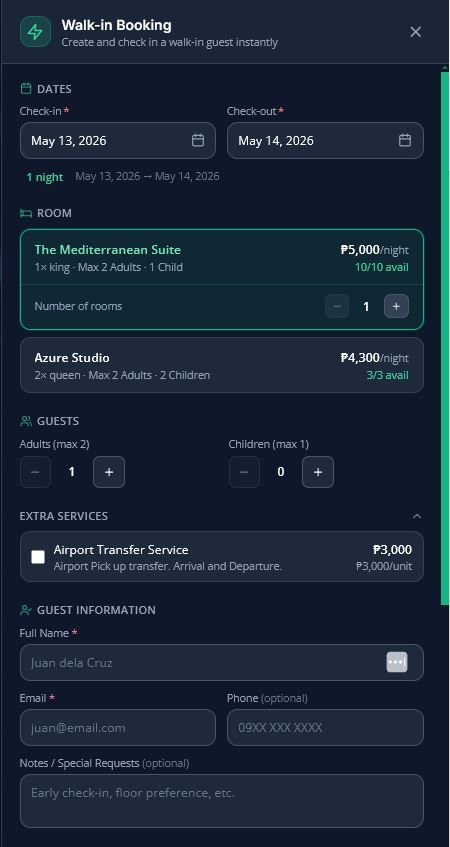
1. Dates
The first step is establishing the timeline of the guest's stay:
- Check-in & Check-out: Use the date picker to set the arrival and departure dates. The system will automatically calculate the total number of nights for the stay.
2. Room
Next, you will choose the accommodation based on live availability for the selected dates:
- Room Selection: You will see a list of available room types (e.g., "The Mediterranean Suite" or "Azure Studio"). Each option displays the bed type, maximum occupancy for adults and children, the nightly rate, and the exact number of units currently available (e.g., "10/10 avail").
- Number of rooms: Select how many units of this specific room type the guest wishes to book.
3. Guests
Specify the number of people staying in the room:
- Adults & Children: Input the exact number of adults and children. The system enforces the maximum capacity limits based on the specific room type you selected.
4. Guest Information
Collect the guest's contact details:
- Required Fields: You must input the guest's Full Name and Email.
- Optional Fields: You can also add their Phone number and any specific Notes / Special Requests they might have for their stay.
5. Payment Collected
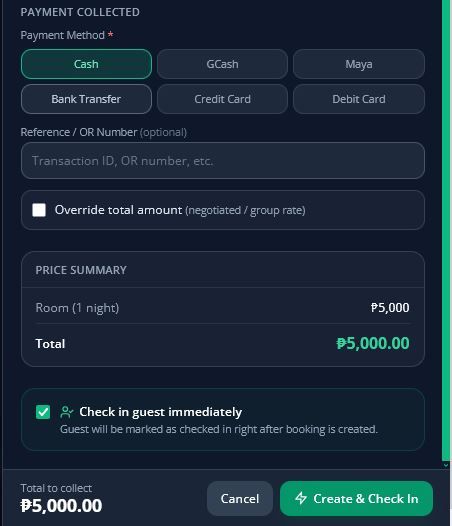
Record the payment received at the front desk:
- Payment Method: Select the method the guest used to pay (e.g., Cash, GCash, Credit Card). This is a required field.
- Reference / OR Number (optional): Input the transaction ID or Official Receipt number for your records.
- Override total amount: Toggle this option if you need to manually enter a custom total, such as when applying a negotiated discount or a special group rate.
6. Price Summary
Review the real-time financial breakdown:
As you fill out the form, this section provides an itemized summary, displaying the base room cost multiplied by the number of nights, alongside the final Total amount to be collected.
7. Check in guest immediately
The final step before submission determines the booking's starting status:
- Toggle Option: Check this box if the guest is physically present and ready to head to their room. Once the booking is created, the system will instantly mark the guest as
checked_in. If left unchecked, the system will simply create aconfirmedbooking.
Once everything is filled out and reviewed, submit the form. On success, you will see a notification with the confirmation code, the modal will close, and your bookings table will refresh automatically.